
In this lesson we learn to transfer a CNC program on an external device to the Mitsubishi M70 control: preparing a CF card/USB, inserting and selecting the device on screen, finding the program, copying it to NC memory, checking it and removing the device safely. First we cover the safest method — copying from the external device to NC memory; we explain running directly from an external device at the end of the lesson.
1. What are CF cards and USB memory used for?
A CF card or USB memory is used to transfer a PC-prepared program to the machine, back up programs on the machine, move a program to another machine, store large programs externally and (if the machine supports it) run the program from the external device. But not all M70 panels have the same connections: some machines only have a CF/IC card, may not have USB, may use USB only for file transfer, or may have direct external running disabled. Mitsubishi manuals state that some screens and features can vary with the control model and the machine builder’s implementation; so the device names on screen may not be exactly the same.
2. Preparing the program file
Before inserting the USB or card, the file should be checked on the computer. The program number (O1200) must be at the start and usually M30 at the end:
O1200
N10 G21 G17 G90
N20 G40 G49 G80
N30 M30
The file name should be as plain as possible (e.g. O1200, O1200.NC, O1200.TXT — the extension varies by the builder’s file system). Avoid special characters, spaces and very long names; for example use O1200.NC instead of “NEW WORKPIECE PROGRAM FINAL.NC”.
3. The program number and the file name are not the same
The file name on the computer may be PARCA1.NC, but the program number inside it may be O1200. When importing, the Mitsubishi control mostly takes the O number inside the program as the basis. So even if the file name looks correct, the program number inside the file must be checked.
4. Before inserting the external device
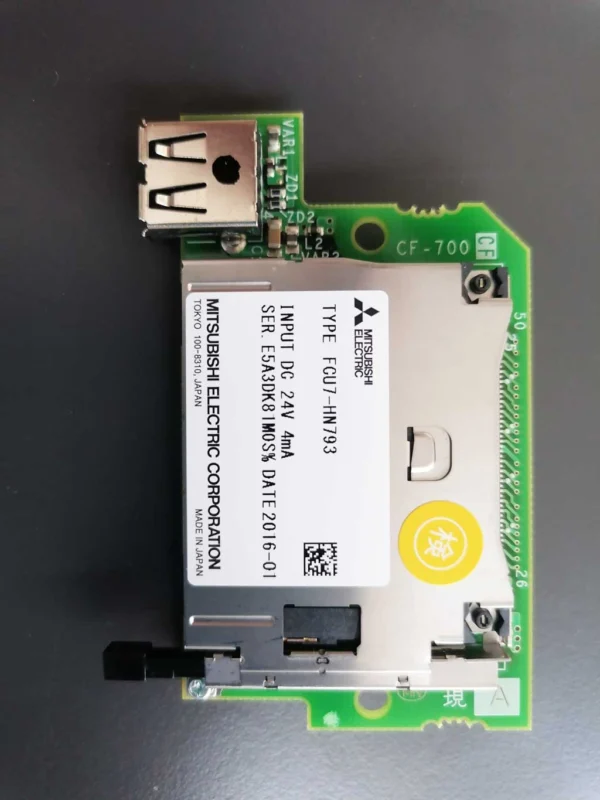
Before inserting the CF card or USB: make sure no program is running, check that the machine is not in an automatic cycle, make sure no file write/delete is in progress, check the device is physically sound, insert a CF card in the correct orientation and do not force it into the slot. USB memory can usually be inserted while the machine is on; but on some older M70 applications the device may need to be inserted before the machine is powered on.
5. Selecting the external device
After inserting the device, the program/file screen opens. General sequence: EDIT → PROGRAM or FILE → DEVICE / DEVICE SELECT. On screen you may see device names like MEMORY, MEM, NC MEMORY, IC CARD, CF CARD, CARD, USB, HD, FD. If using a CF card, select CF CARD (or IC CARD); if using USB, select USB; then press INPUT/SELECT.
6. If the device does not appear
If the CF card or USB does not appear in the device list, check: is the device inserted correctly, may the card be inserted backwards, should the USB go in another port, is the file system supported by the control, is the memory capacity too large, is the USB/card feature active on the machine, may the device be disabled from the builder panel? The P461 File I/O error description in the M700 Handbook states that a file input/output error can occur when the program file on the external device cannot be read or the IC card is not inserted; as a solution, check that the external device is inserted and that the relevant card/external-device parameters are correct.
7. Finding the program on the external device
After the device is selected, the file list on the card/USB opens (e.g. O1000.NC, O1100.NC, O1200.NC, KALIP1.NC). To select the program: move onto the file with arrow keys → check the correct name and, if possible, the size → INPUT/OPEN/SELECT. Some panels have folders; to enter a folder use INPUT, to go up use PARENT or ...
8. Viewing the program first
Before copying the file immediately, view its content if possible: is the correct O number present, is the program empty, is there M30 at the end, are there strange/corrupt characters, are the lines separated properly, may the file have been prepared for a different machine? The Mitsubishi programming manual states that the line-end format of programs from external devices can differ from those created on the NC screen (NC screen CR+LF, some external programs only LF). If the whole program appears as a single line on screen, the line-end format may not be suitable.
9. Copying the program to NC memory
The safest method is to transfer the program to NC memory first. General sequence: (1) Switch to EDIT mode. (2) Open the PROGRAM/FILE screen. (3) Select CF CARD or USB as the source device. (4) Find the program to transfer. (5) Move onto the file. (6) Select the COPY/INPUT/TRANSFER command. (7) Select MEMORY as the target device. (8) Confirm the transfer. (9) Wait until it completes. Soft-key names may be COPY, TRANSFER, INPUT, READ, IMPORT, FILE IN, DATA IN; the builder may have used a different name.
10. Source and target device logic
In copying there are two sides: Source is where the program currently is (e.g. USB), Target is where it will be sent (e.g. MEMORY). Correct direction: USB → MEMORY or CF CARD → MEMORY. If the wrong direction is selected, a program in NC memory can be copied over onto the card; so before the operation starts, the source and target devices must be checked.
11. If the same program number exists in memory
If the USB program is O1200 and NC memory also has O1200, the control may show one of these: a “program already exists” warning, stop the copy, ask for confirmation to overwrite, or ask you to save under a different number. In that case do not overwrite immediately; first open the O1200 in NC memory, back it up, compare the date and file size, check whether the contents are the same, and decide whether to delete the old program. The safest method is to transfer the new program under a different number (e.g. O1201); but be careful if subprogram calls inside the program depend on the new number.
12. What not to do during transfer
While the program is being copied: do not give CYCLE START, do not press RESET unnecessarily, do not remove the USB, do not remove the CF card, do not cut power to the machine, do not start another file delete, do not change the device. The M700 Handbook explains that automatic start is blocked while a file write/delete is in progress; CYCLE START must not be given before the operation completes.
13. How do we know the transfer is complete?
A message like COMPLETED, TRANSFER COMPLETE, INPUT COMPLETE or END may appear on screen. The device must not be removed before the message appears. On some panels a progress bar or a change in file size may be seen.
14. Checking the copied program
After the transfer completes: change the device to MEMORY, open the NC memory program list, find the transferred O number, open the program, check its first and last line, and make sure it was transferred completely. The basic check points are O1200 and M30; there must be no missing line or corrupt character in the middle of the program.
15. Can the program on the external device be run directly?
On some M70 machines the program can be run directly from an external device, but this feature is not on every machine. Direct running may appear as TAPE, DNC, EXT, EXTERNAL, CARD OPERATION or IC CARD OPERATION. Important distinction: the USB appearing on screen does not mean a program can be run directly from USB. On many machines USB is only for USB → NC MEMORY transfer. For direct running, the machine must support the external operation mode, the PLC setting must suit it, the device parameters must be set, and the program look-ahead system must support the device.
16. Running directly from the external device
If the machine supports this feature, the general sequence: (1) Insert the CF card or suitable device. (2) Find the program in the device list. (3) Select the program to run. (4) Switch to TAPE/DNC/EXTERNAL mode. (5) Reset the program to the start with TOP SEARCH. (6) Check the correct program on MONITOR. (7) Turn on SINGLE BLOCK. (8) Lower Feed and Rapid Override. (9) Give CYCLE START. During operation the external device must not be removed, moved, disconnected or put into a write/delete operation. If the file cannot be read, a P461 File I/O error can occur (file unreadable or card not inserted).
17. Subprograms while an external program runs
If the main program is on an external device, it may contain a command like M98 P2000; in that case the control searches for the O2000 subprogram. Where the subprogram is searched depends on the machine’s setting: it may need to be in NC memory, on the same CF card, in the same folder or on the selected external device. Before running the main program, check that all subprograms are present; if a subprogram cannot be found, a program error occurs.
18. Basic difference between USB and CF card
| Feature | CF/IC card | USB memory |
|---|---|---|
| Likelihood of being on older M70 systems | High | Model-dependent |
| File transfer | Usually supported | May be supported |
| Direct program running | Possible on some machines | May be limited on most machines |
| Removal during operation | Forbidden | Forbidden |
| Dependence on builder setting | High | High |
19. Removing the external device safely
After the file operation completes: check that no program is running, check the copy operation is finished, wait for the device access indicator to stop, select MEMORY as the device again if possible, apply the eject/unmount option if there is one on screen, and remove the USB/card carefully. Do not pull the CF card out by force. If a program runs directly from the card, make sure the device is no longer being read even after completion.
20. Common problems
- Program not in the list: wrong device selected, extension not supported, name too long, file in a subfolder, incompatible memory format, or USB/card not detected.
- File I/O Error: is the card/USB inserted, can the file be read, is the connection sound, is the external-device parameter correct, is the file corrupt?
- Program already exists: NC memory has the same O number; the old program must not be overwritten without checking.
- Program appears as a single line: the line-end format may be incompatible; the program should be re-saved in a suitable CNC text format on the computer.
- Part of the program is missing: the transfer may have been interrupted, NC memory may be full, the file may be corrupt or the connection lost. A missing program must never be run.
21. Application example and lesson summary
To transfer O1200.NC on USB to NC memory: check no program is running → insert the USB → switch to EDIT mode → open the PROGRAM/FILE screen → select USB from DEVICE SELECT → find O1200.NC → check its content → select COPY/INPUT/TRANSFER → select MEMORY as target → confirm → wait for the COMPLETED message → set the device to MEMORY → find O1200 → check its start and end → if the program is correct, remove the USB safely. In this lesson we learned the purpose of CF cards and USB, file preparation, device selection, finding the program, copying it to NC memory, the source/target difference, the same-program-number case, that direct external running depends on the machine, and the checks to do on a File I/O error.
Next lesson — Lesson 6: Transferring a program from a computer to the CNC and DNC running (RS-232 connection, Ethernet/host connection, sending a program from the PC to NC memory, direct running in DNC/TAPE mode, cautions during communication and what to do if the connection drops).