
First, get this straight: which panel?
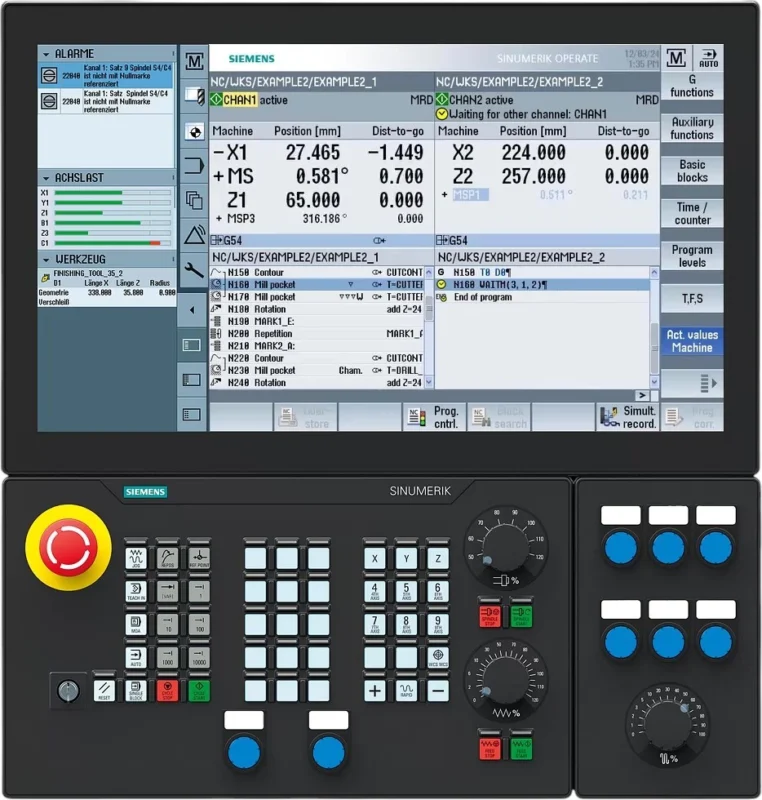
Working with a Siemens SINUMERIK control you meet three separate keyboards, and they are not the same thing. Most of the key lists you find online do not make this distinction, which is where the confusion starts.
1. PPU — the front of the control itself
On an 828D the screen, the processor and the keyboard are a single unit called the PPU. Its front carries alphabetic keys, numeric keys, a cursor key group, a control key group, menu forward and back keys and the 8 + 8 softkeys around the screen. It also has the MENU USER and MENU FUNCTION fast selection keys.
2. OP 010 / OP 010C — the full CNC keyboard
This is a separate operator panel. The direct access keys — PROGRAM, OFFSET, PROGRAM MANAGER and ALARM — live here. Siemens marks these keys in its own manual with the explicit note “only OP 010 and OP 010C”.
3. MCP — the machine control panel
JOG, AUTO, MDI, RESET, NC START, NC STOP, the axis direction keys and the feed and spindle overrides are here. Every key that actually moves the machine sits on this panel, and its layout is decided by the machine builder.
Operating areas: the six sections of SINUMERIK
Everything in SINUMERIK is divided into operating areas. Learn these six before you memorize any keys and the logic of the panel falls into place.
| Operating area | What is in it | When you go there |
|---|---|---|
| Machine | Axis positions, active tool, spindle speed, feed, active G codes, operating mode, program status | Most of the working day. This is where you sit while a part is running. |
| Parameter | Tool list, tool geometry and wear data, work offsets (G54, G55, G56, G57), R parameters | Entering tool data, setting the part zero. |
| Program | The program editor — the blocks of the selected program, editing, simulation | Writing or correcting a program. |
| Program Manager | Program and folder list, creating, copying and deleting programs; NC memory, local drive, USB | Selecting a program, transferring from USB, organizing folders. |
| Diagnosis | Active alarms, messages, alarm log, service data | When an alarm comes up, when chasing a fault. |
| Startup | Machine data, drive settings, access levels | Service and commissioning. Not the operator’s daily work. |
Direct access keys
These keys take you to an operating area in one press. The descriptions below are Siemens’ own wording from the 828D operating manual. The right-hand column tells you which panel the key is on.
| Key | Siemens’ description | Which panel |
|---|---|---|
| MACHINE | Calls the “Machine” operating area. | No restriction |
| PROGRAM | Calls the “Program Manager” operating area. | Only OP 010 / OP 010C |
| OFFSET | Calls the “Parameter” operating area. | Only OP 010 / OP 010C |
| PROGRAM MANAGER | Calls the “Program Manager” operating area. | Only OP 010 / OP 010C |
| ALARM | Calls the “Diagnosis” operating area. | Only OP 010 / OP 010C |
| MENU SELECT | Calls the main menu to select the operating area. | General |
MENU SELECT is the safe route
If your panel has no direct access keys, press MENU SELECT to open the main menu and pick the operating area from the softkeys. This works on every SINUMERIK Operate panel. On an unfamiliar machine it is quicker than hunting for a key.
Navigation and entry keys
These keys do not change the operating area; they move you around the screen and get values into the control. The descriptions are again Siemens’ own.
| Key | Function | Operator note |
|---|---|---|
| INPUT | Completes input of a value in the entry field. Opens a directory or a program. | Like Enter on a computer, but it does more: it opens files and adds blocks. |
| SELECT | Switches between the specified options in selection lists and selection boxes. Activates checkboxes. | In a selection field you change the option with SELECT, not with the arrow keys. |
| INSERT | Opens an editing window in insert mode. Or opens a selection box and shows the available options. | It has no single job; what it does depends on the screen you are on. |
| BACKSPACE | In edit mode, deletes the character to the left of the cursor. | Same idea as Backspace on a keyboard. |
| DEL | In edit mode, deletes the first character to the right of the cursor. | Often confused with BACKSPACE. The difference is direction: one left, one right. |
| END | Moves the cursor to the last entry field in a window, to the end of a table or of a program block. | Saves time in long tool tables and programs. |
| PAGE UP PAGE DOWN | Scrolls up / down by one page in a window. | Jumps a page instead of walking line by line. |
| NEXT WINDOW | Toggles between the windows. Selects the first entry in selection lists. | When the screen is split, this changes which pane is active. |
| CHANNEL | Advances to the next channel where there are several channels. | Unused on a simple single-channel machine. Essential on multi-channel lathes and twin-spindle machines. |
| HELP | Calls the context-sensitive online help for the selected window. | Press it while sitting on a G code or an alarm and you get the explanation for that item. |
| ALARM CANCEL | Cancels alarms and messages that are marked with this symbol. | The words “marked with this symbol” matter — see below. |
| Cursor keys | Move the cursor around the screen. | Navigating lists, tables, programs and folders. |
| SHIFT | Gives access to the second function of the keys. | The second characters printed on the keys are entered with this. |
Keys whose content changes from machine to machine
There are three keys whose behavior is decided not by Siemens but by the company that built the machine. For these, no one can honestly write “press this and that screen opens”.
MENU USER and MENU FUNCTION
Siemens describes these as fast selection keys on the PPU front and writes:
The screens behind them are defined in the files menu_user.xml and menu_function.xml. Your machine builder may have put a measuring screen, a maintenance page, a counter display — or nothing at all — behind them.
CUSTOM
SINUMERIK does have an operating area called Custom, but it is switched off from the factory. To enable it, the line [Custom] Visible=True has to be added to the slamconfig.ini file. Once enabled it appears as a softkey in the main menu.
Worth noting: there is no CUSTOM key in Siemens’ key table. If your panel has a key labeled CUSTOM, it is a shortcut the machine builder wired to that area. For what is behind it, consult the machine builder’s manual.
Softkeys: the keys with nothing written on them
Below and to the right of the screen you will see blank rectangular keys. These are softkeys and they have no fixed job. They do whatever is written next to them on screen at that moment.
An example: call up the tool measuring function and the vertical softkey bar offers “Radius”, “Length” and “Calibrate tool probe”. On another screen those same physical keys might read “New”, “Copy”, “Delete”.
- Horizontal softkeys (below the screen) generally select the main sections and functions.
- Vertical softkeys (to the right) give the sub-options of that function.
- The menu forward key (
>) reveals the extra softkeys that did not fit on the horizontal bar. If you cannot find an option, that is the first place to look. - The menu back key (
<) returns to the higher-level menu.
This is why describing a procedure as “press the third key from the right” is wrong; “press the softkey labeled Length” is right.
Why are JOG, AUTO and MDI not on this keyboard?
Because they are not on the display panel — they are on the machine control panel (MCP). Siemens’ own operating document describes tool measuring in exactly that order: first select the “Machine” operating area, then select JOG mode on the machine control panel.
A typical MCP carries:
- Operating modes: JOG, MDA / MDI, AUTO, REF POINT
- NC START (cycle start) and NC STOP
- RESET
- Axis direction keys and the rapid traverse key
- Feed override and spindle override switches
- Spindle CW/CCW/stop, coolant, door interlock and other machine-specific keys
MPF and SPF: the program file types
Creating a new program in the Program Manager, you are offered MPF and SPF.
- MPF — Main Program File. The main program. This is what you select and run on the machine.
- SPF — Sub Program File. A subprogram. It is called from inside a main program and is not run on its own.
Two different spellings — do not let it catch you out
On screen you see the file as PART1.MPF and ROUGH.SPF, with a dot. But when you call a subprogram by its path from inside a program, the spelling uses underscores:
CALL "/_N_WCS_DIR/_N_SUBPROG_WPD/_N_PAT1_SPF"They are the same file. The dotted form is what the operator sees; the underscored form is the real name in NC memory. Copy a path out of a manual without knowing this and you get a “program not found” error.
Folders in NC memory
| Folder | Contents |
|---|---|
_N_MPF_DIR | Main programs |
_N_SPF_DIR | Global subprograms |
_N_WKS_DIR | Workpiece folders |
_N_CST_DIR | Standard cycles (Siemens) |
_N_CUS_DIR | User cycles |
_N_DEF_DIR | Definition and macro files |
_N_COM_DIR | Comment files |
The other file types follow the same naming logic: _TOA tool offset data, _UFC work offset and frame data, _TEA machine data, _RPA R parameters, _GUD global user data.
Storage locations in the Program Manager
Open the Program Manager and the storage options appear along the bottom:
- NC — the control’s own memory. The program you run is selected from here.
- Local drive — internal disk space on the control. Used for archives and backups.
- USB — the stick you plug in. Program transfer happens through this.
Frequently asked questions
My panel has no OFFSET key. How do I get to the tool offsets?
Press MENU SELECT and choose the Parameter area from the main menu. The OFFSET key exists only on OP 010 and OP 010C panels; your PPU may not have one. The function is identical, only the route differs.
I pressed ALARM CANCEL and the alarm is still there.
That alarm is not one of the clearable ones. Read the alarm text and note the number first. Some alarms need RESET; others need a physical condition put right — door interlock, hydraulic pressure, emergency stop. While the cause remains, the alarm comes back.
Are 828D and 840D the same?
The software interface (SINUMERIK Operate) is largely shared: operating areas, softkey logic and menu structure are similar. The hardware differs — on an 828D the screen and keyboard are one unit (the PPU), while an 840D sl uses separate operator panels. That is why the key layout and which direct access keys exist are not the same.
Does any of this apply to 810D and 840D?
The operating area logic and the program file structure (MPF, SPF, folders) are the same on the older SINUMERIK systems too. But the older controls look different on screen and their panels are laid out differently; the key descriptions on this page belong to the SINUMERIK Operate interface.
The simulator shows keys my machine does not have.
That is normal. Training software draws the full CNC keyboard on screen, and the PPU on your real machine may not carry all of those keys. The simulator may also draw the MCP keys. It is fine for learning, but at the machine you should think in terms of operating areas rather than key positions.
Which keys should I learn first?
If you are starting out, five will do: MENU SELECT (it gets you anywhere), INPUT (confirm and open), the cursor keys (navigation), HELP (an explanation wherever you are stuck) and RESET on the MCP. The rest comes with use.
Sources
- Siemens AG — SINUMERIK 828D Universal Operating Manual (key descriptions and the “only OP 010 / OP 010C” markings)
- Siemens AG — SINUMERIK 828D PPU and components Manual (key groups and softkey layout on the PPU front)
- Siemens AG — SINUMERIK 828D Easy XML Programming Manual (MENU USER and MENU FUNCTION fast selection keys)
- Siemens AG — SINUMERIK 828D Commissioning Manual (enabling the “Custom” operating area)
- Siemens AG — SINUMERIK Advanced CNC Operation and Programming, 05/2010 (tool measuring in JOG, MPF/SPF file structure, NC folder structure)