
Writing programs on the Mitsubishi M80, deleting them and transferring them from a USB stick or SD card are done on the screens under the EDIT key. This page gives every operation key by key in tables: opening a new program, editing a stored program, deleting, transferring from USB/SD to the machine and back, selecting a program to run and checking it without running the machine.
How do you create a new program on the Mitsubishi M80?
| Step | What to do | What you see |
|---|---|---|
| 1 | Press EDIT and select the [Edit] menu | The program edit screen opens |
| 2 | Press [Open (New)] | The device and program list opens |
| 3 | Press [Memory] (NC memory) | Device: Memory, directory: program |
| 4 | Type a program name that does not exist yet, e.g. 1000 | The name appears in the input area |
| 5 | Press INPUT | An empty program opens and the list closes |
| 6 | Write the program. Press EOB (;) at the end of each line | “Editing” appears next to the file name |
| 7 | Press INPUT to save | The program is saved |
- Program name: Use digits, upper-case letters and permitted symbols. Lower-case letters, spaces and \ / : , * ? ” < > | are not allowed. Up to 32 characters.
- Same name: If you enter an existing name, “Designated file already exists” appears.
- Comment: Text in parentheses in the first block appears as the program comment in the list, e.g.
(FLANGE OP10). - Protected numbers: Programs 8000–9999 and 9000–9999 may be locked by the builder (Edit lock B and C).
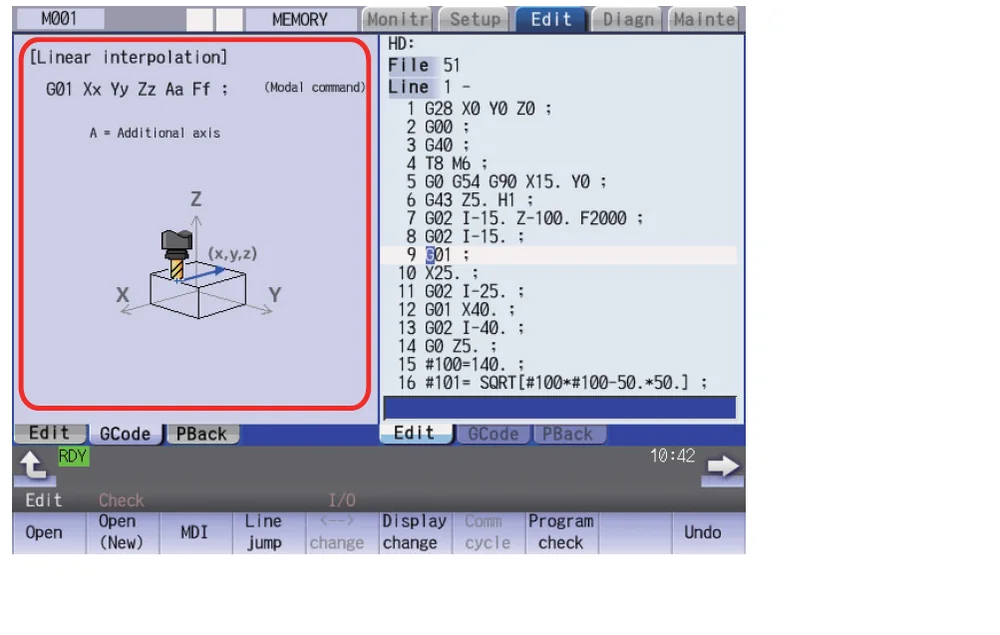
Which keys and menus are used while writing a program?
| Key / menu | What it does |
|---|---|
| EOB | Enters the end of block “;” |
| INSERT | Switches to insert mode; typed characters go in front of the cursor |
| DELETE | Deletes the character at the cursor |
| [Line copy] / [Paste] | Copies a line / pastes it in front of the cursor |
| [Line clear] | Deletes the selected lines |
| [String search] | Searches the program for a string (e.g. T5) |
| [String replace] | Replaces old/new text, e.g. F200/F150 INPUT |
| [N auto add] | Adds N numbers to blocks automatically |
| [Undo] | Returns to the state before saving (must be enabled by parameter) |
| [Line jump] | Jumps to the entered line number |
How do you open and correct a stored program?
| Step | What to do | What you see |
|---|---|---|
| 1 | EDIT → [Edit] → [Open] | The program list opens |
| 2 | Select the device: [Memory], [Memory card] or [USB Memory] | Programs on that device are listed |
| 3 | Select the program with ↑ ↓ or type its name | – |
| 4 | Press INPUT | The program opens with the cursor at the top |
| 5 | Make the correction and press INPUT to save | The program is saved |
Tip: To open a program at a given block, type 1000/100 in step 3 (program 1000, N100). A program that is running or being restarted can be opened but not edited.
How do you delete a program on the Mitsubishi M80?
| Step | What to do | What you see |
|---|---|---|
| 1 | EDIT → [Edit] → move to the next menu page with the right arrow → [Erase file] | The program list opens |
| 2 | Select the device (e.g. [Memory]) | – |
| 3 | Move to the program with ↑ ↓ or type its name | – |
| 4 | Press INPUT | A confirmation prompt appears |
| 5 | Y or INPUT (N to cancel) | The program is deleted |
If it is not deleted: A program cannot be deleted while it is running, in restart state, under Edit lock B/C, or when a data protection key is active. A deleted program cannot be recovered; copy important programs to USB first.
How do you transfer a program from USB or SD card to the machine?
Transfer is done on EDIT → [I/O]. The screen has two columns: A is the source and B the destination. You select the device with a shortcut letter.
| Shortcut letter | Device |
|---|---|
| M | Memory (NC memory) |
| N | USB memory |
| R | Memory card (front SD card) |
| D | DS (built-in SD card) |
| S | Serial (RS-232C) |
| T | Ethernet |
| Step | What to do | What you see |
|---|---|---|
| 1 | Insert the USB stick, press EDIT → [I/O] | The input/output screen opens |
| 2 | Go to column A with ←, press N (USB) | A: USB Memory |
| 3 | [File set] → move to the folder with ↑ ↓ and INPUT, then select the file and press INPUT | The file name is set in column A |
| 4 | Go to column B with →, press M (memory) | B: Memory / program |
| 5 | [File set] → type the name in memory, e.g. 1000 INPUT | The destination name is set in column B |
| 6 | Press [Trnsfr A->B] | A confirmation prompt appears |
| 7 | Y or INPUT | Transfer starts and a completion message appears |
| 8 | Press [Compare A:B] to verify | The files are compared; any difference is shown |
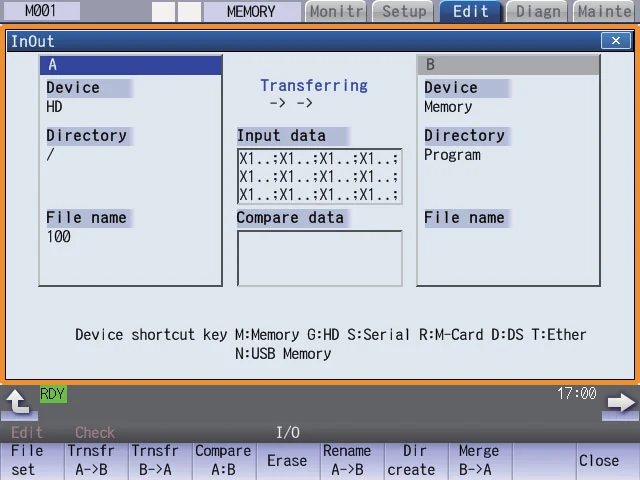
- From the machine to USB (backup): Select M (memory) in column A and N (USB) in column B and do [Trnsfr A->B] the same way.
- Several programs: Use * in the file name. Example: 1* → programs 1, 10–19, 100–199… Locked programs are skipped.
- Reverse direction: Use [Trnsfr B->A] to transfer from B to A.
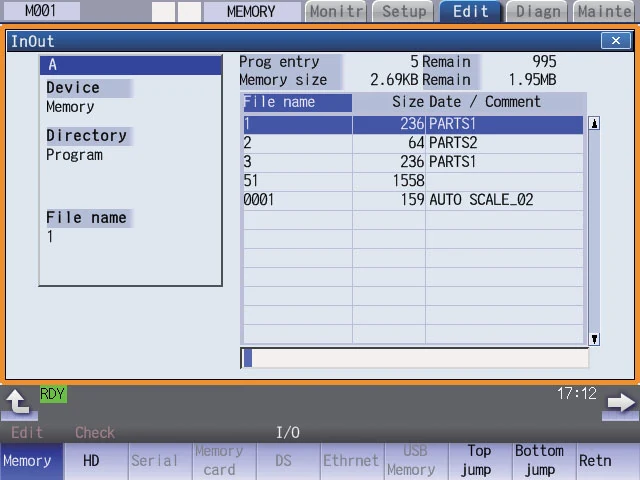
How do you load several programs from one file?
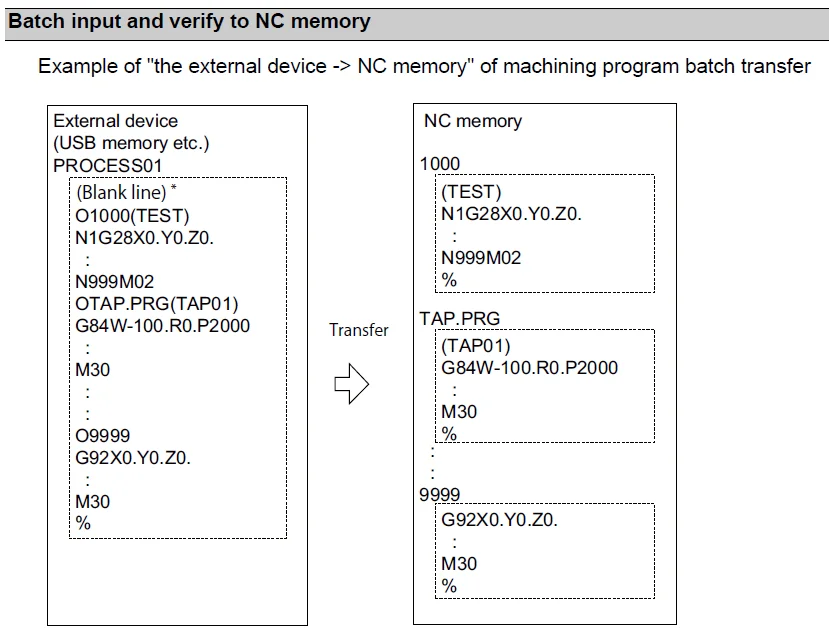
When a file containing several programs (each starting with its O number) is transferred to memory, each program is stored separately. In the example below, file PROCESS01 is split into programs 1000, TAP.PRG and 9999 in memory.
What should you watch for with USB sticks and SD cards?
- Wait at least 10 seconds after power-on before inserting a USB stick.
- Insert and remove the SD card with the power off.
- Do not remove the USB stick or card during reading/writing; data can be damaged.
- Do not use a USB hub or extension cable.
- Lower-case letters in file names are converted to upper case in memory; do not use non-ASCII characters.
- A single block should not exceed 250 characters.
- Do not transfer during automatic operation.
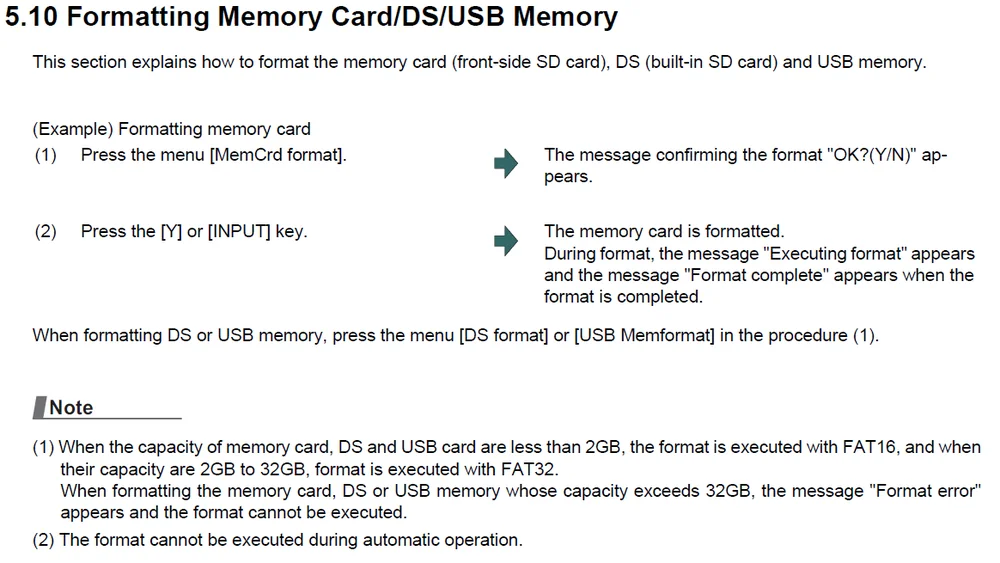
How do you format a USB stick or SD card?
| Step | What to do | What you see |
|---|---|---|
| 1 | EDIT → [I/O] → go to the next menu page | – |
| 2 | Press [USB Mem format] (USB) or [MemCrd format] (SD card) | “OK?(Y/N)” appears |
| 3 | Y or INPUT | “Executing format”, then “Format complete” |
Memory under 2 GB is formatted as FAT16, 2–32 GB as FAT32. Memory larger than 32 GB cannot be formatted (“Format error”); use 32 GB or smaller USB sticks for the machine. Formatting erases everything and is not possible during automatic operation.
How do you select the program to run?
| Step | What to do | What you see |
|---|---|---|
| 1 | Press MONITOR → [Search] | The program list opens |
| 2 | Select the device: [Memory], [Memory card] or [USB Memory] | – |
| 3 | Move to the program with ↑ ↓ | – |
| 4 | Press INPUT | The program is ready to run; its name appears on screen |
| 5 | CYCLE START in MEMORY mode | The program runs |
| Type in the input area | Selects |
|---|---|
| 1001 | Top of program O1001 |
| 1001/50 | O1001, block N50 |
| 1001/50/2 | O1001, 2nd block after N50 |
| /50 | N50 in the currently selected program |
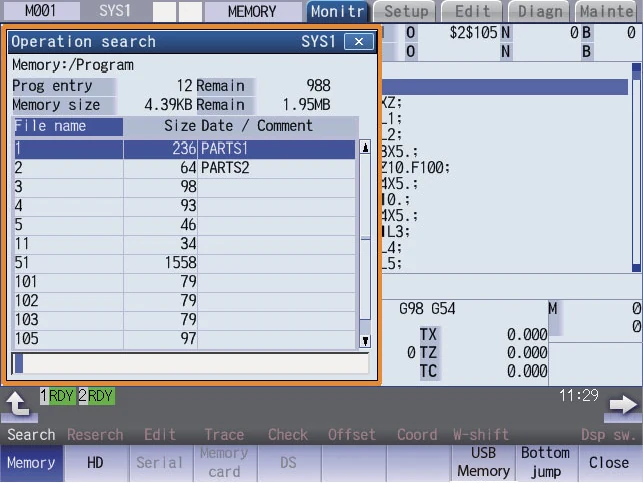
Running directly from USB or SD card: If you choose [USB Memory] or [Memory card] in step 2, the program runs from the device without copying it to memory. Do not remove it while running. If you insert another USB stick without a program of the same name, error P232 appears.
How do you check a program without running the machine?
| Step | What to do | What you see |
|---|---|---|
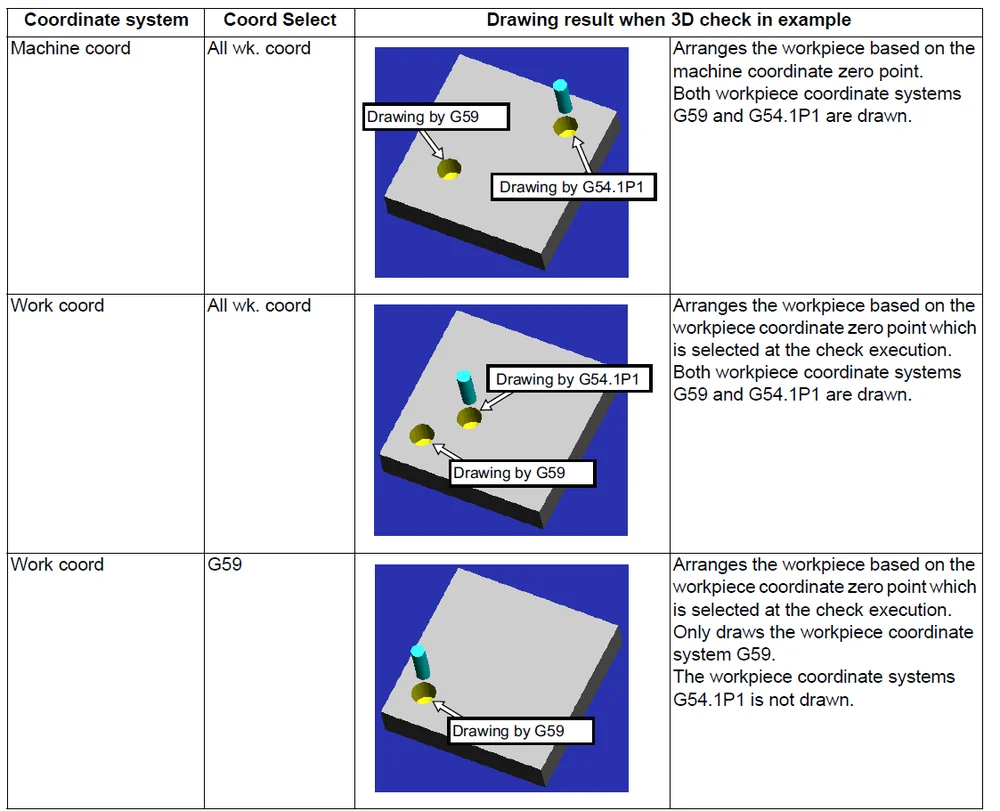
| 1 | With the program open on the Edit screen press [Program check] (or select a program with EDIT → [Check] → [Check search]) | The graphic check screen opens |
| 2 | Switch to the solid model with [3D Check] (if needed) | – |
| 3 | [Check continu] draws all, [Check step] one block at a time | The tool path and part are drawn; the machine does not move |
| 4 | With [Colli check] on, any contact during rapid traverse is shown in color | – |
| 5 | [Check reset] when finished | – |
How do you correct a block while the program is running?
When the program stops in single block, or stops because of a program error in the next block, you can correct the following blocks without pressing RESET and continue from where you stopped. This is called buffer correction, and the correction is also written to the program in memory.
| Step | What to do | What you see |
|---|---|---|
| 1 | Stop the machine with SINGLE BLOCK, or wait for it to stop on a program error | The machine stops at the end of a block |
| 2 | Press MONITOR → [P corr] (Prg correct in the manual) | The Buffer correction window opens with the next block at the top |
| 3 | Move to the block with ↑ ↓ and edit it as in normal editing | Up to 16 blocks are shown |
| 4 | Press INPUT | The correction is written to the program; the program error message is cleared |
| 5 | Check the correction and press CYCLE START | The program continues from where it stopped |
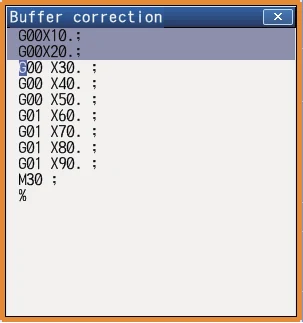
| Screen area | What it shows |
|---|---|
| Buffer correction | Window title; close it with the X on the right |
| Grey lines (G00X10., G00X20.) | Previous block and block being executed; cannot be corrected |
| White area (G00 X30. … M30) | Next blocks; the cursor is here and corrections are made in this area |
| % | End of program |
- The block being executed cannot be changed; correction starts from the next block.
- If you press another menu before INPUT, the correction is discarded and the program stays as it was.
- Changing the screen or pressing RESET cancels the correction.
- Pressing CYCLE START while the correction window is open gives an alarm; finish with INPUT first.
- Correction is not possible with edit lock or data protection active, on a read-only program, or while a builder macro is running.
Messages during program operations and how to fix them
| Message | Cause | Fix |
|---|---|---|
| Designated file already exists | A program with that name exists | Use another name or delete the old one |
| Designated file does not exist | No program with that name | Check the name and device |
| Edit lock B / Edit lock C | Protected programs 8000–9999 or 9000–9999 | Builder protection; ask an authorized person |
| Executing automatic operation | Edit/transfer tried while the program runs | Do it after the program ends or after RESET |
| Can’t edit because of size over | Program larger than the device edit limit | Split the program or edit it on a computer |
| (Cihaz) not ready | USB/SD not inserted or not readable | Re-insert it; use 32 GB or smaller |
| Format error | Memory larger than 32 GB | Use a smaller stick |
| P232 | The selected program is not on the inserted USB | Insert the right stick or select the program again |
Frequently asked questions
How do you save a program on the Mitsubishi M80?
After writing the program on the Edit screen, just press INPUT. The “Editing” mark next to the file name disappears.
The program on the USB is not shown on the machine. Why?
Make sure you selected the right folder and press [List update]. Sticks larger than 32 GB or a hub may not be read.
Can I run a program from USB without copying it to memory?
Yes. On MONITOR → [Search] select [USB Memory] and pick the program with INPUT. Do not remove the stick while running.
How do I back up all programs to USB?
On EDIT → [I/O] select M (memory) with file name * in column A and N (USB) in column B, then press [Trnsfr A->B].
Why can’t I delete a program?
It cannot be deleted while running, in restart state, in a protected number range (8000–9999) or when data protection is on.
Can you correct a block while the program is running?
Yes. When the program stops in single block or on a program error, use MONITOR → [P corr] to correct the following blocks, press INPUT and continue with CYCLE START. Do not press RESET.
Mitsubishi M80 training series
- 1. Mitsubishi M80 Panel Keys and Screens
- 2. Writing, Deleting and Transferring Programs from USB/SD Card on the Mitsubishi M80 (this page)
- 3. Work Offset and Tool Offset Setting on the Mitsubishi M80
- 4. Restarting an Interrupted Program on the Mitsubishi M80
- 5. Mitsubishi M80 Alarm Screen, Parameters and Backup
Safety notice and disclaimer
Before running a program from another machine or a computer, check it on the graphic screen and run it first in single block with low feed override. A deleted or overwritten program cannot be recovered; back up important programs regularly. Menu positions and available devices may differ depending on the machine tool builder’s settings and options.
Mentor CNC cannot be held responsible for tool breakage, scrapped parts, machine damage, data loss or accidents resulting from the use of the information on this page. Responsibility lies with the person and company carrying out the work.
