
Estimated reading time: 7 minutes
What Will You Learn in This Lesson?
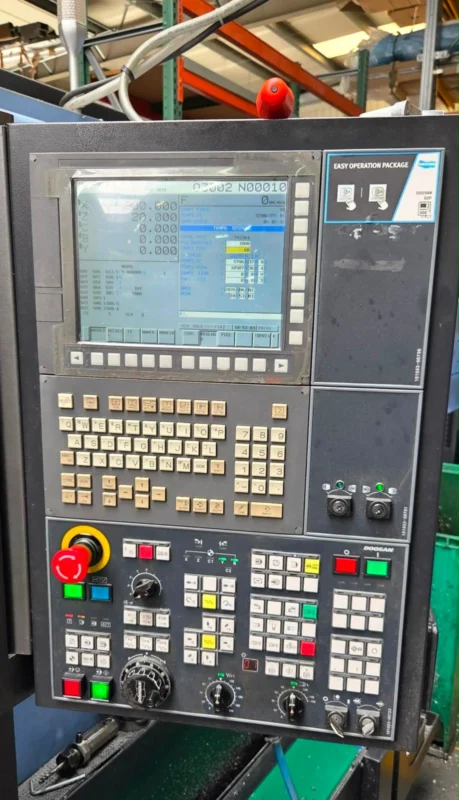
In this lesson you will learn, on a FANUC control unit:
- how to open the program list,
- how to search for and call a program by its O number,
- how to create a new program,
- how to move around inside a program,
- the
INSERT,ALTERandDELETEkeys, - word, sequence number and block search,
- program copying and deleting,
- program protection,
- returning to the beginning of the program.
The aim here is not to teach G and M codes, but to explain how the programs in the CNC memory are managed through the FANUC control.
The FANUC Program Screen
The programs in the CNC memory are generally reached with the PROG function key on the MDI keyboard.
The following information can be seen on the program screen:
- The O number of the selected program
- The program content
- The word or block where the cursor is
- The active sequence number
- The list of programs in the memory
- The used and free program memory
- The program search and editing options
On some FANUC controls the program list is opened with a soft key such as DIR, PROGRAM DIR or FOLDER.
The Program Number: the O Address
Every main program in the FANUC memory is generally identified by a program number starting with the letter O:
O0100Here:
Ois the program number address.0100is the number of the program in the memory.
Two separate programs with the same O number cannot exist in the same memory.
When the program number is written, some controls may complete the leading zeros automatically. For example, a program entered as O100 may be shown on the screen as O0100.
Some number ranges may be reserved by the machine tool builder for special programs, tool change operations or protected macros. When creating a new program, the program numbering scheme of the machine should be followed.
Opening the Program List
The program list displays the programs stored in the CNC memory.
The general order of operation is as follows:
- Make sure the machine is not in automatic operation.
- Select
EDITmode. - Press the
PROGfunction key. - Select the
DIR,FOLDERor program list soft key. - Examine the list with the page and cursor keys.
Depending on the control series, the following information may be present in the program list:
- Program number
- Program comment
- The memory the program occupies
- Creation or modification date
- The selected main program
- The free space remaining in the memory
Program comments are mostly written in brackets after the program number:
O0100 (SHAFT BODY)Character support may be limited on older FANUC controls. Only the characters supported by the control should be used in program comments.
Searching for and Calling a Program by O Number
The common way of calling a program in the memory is to search by O number.
The general procedure:
- Open
EDITmode, or the program selection mode permitted by the machine. - Switch to the
PROGscreen. - Type the program number to be searched for:
O0100- Press
O SRH,SEARCHor the appropriate search soft key. - Verify the selected program number at the top of the screen.
When the program is found, its content is displayed on the screen. If the program does not exist, a search alarm or a “not found” message may appear.
Caution: displaying a program on the screen and running it automatically are not the same operation. Before Cycle Start, which program is selected as the main program in MEMORY/AUTO mode must be verified separately.
Creating a New Program
A new program is normally created in EDIT mode.
The general order of operation:
- Select
EDITmode. - Open the
PROGscreen. - Determine an unused O number.
- Enter the program number.
- Use the
INSERT,CREATEorNEWoperation offered by the control. - Verify that the program number has been created on the screen.
For example:
O0200If the program number already exists in the memory, the control may open the existing program instead of creating a new one, or give a warning. For this reason the program list should be checked first.
Before writing the first lines of the new program, make sure the correct O number is open. Editing another program with a similar number by mistake can have serious consequences.
Using the Cursor Inside a Program
Program editing operations are applied to the position where the cursor is.
The cursor can be moved by the following methods:
- CURSOR up and down keys
- CURSOR right and left keys
- PAGE up and down keys
- Word search
- Sequence number search
- Return to the beginning of the program
Before editing, the selected word should be highlighted on the screen or marked with the cursor.
For example, if the cursor is on X50.0 in the following line, the ALTER or DELETE operation affects this word:
N100 G00 X50.0 Z5.0;Common mistake: looking at the correct line alone is not enough. The operation is applied to the word where the cursor actually is.
INSERT – Adding New Information
INSERT is used to add a new word, value or block to the program.
For example, if the existing line is:
N100 G00 X50.0;and Z5.0 is to be added to the line, the appropriate position is selected, Z5.0 is typed and INSERT is applied.
Result:
N100 G00 X50.0 Z5.0;When a new program block is created, the commands to be entered are typed and the end of the block is marked with EOB. Depending on the control series, the insertion method may be applied word by word or as a whole block.
After the insertion the line should be read again. Because of the cursor position, the new word may have been placed somewhere unexpected.
ALTER – Changing Existing Information
ALTER replaces the existing word where the cursor is with the newly entered word.
For example:
N100 G00 X50.0 Z5.0;if the X50.0 value in this line is to be made X60.0:
- The cursor is brought onto
X50.0. X60.0is typed.- The
ALTERkey is pressed.
Result:
N100 G00 X60.0 Z5.0;The ALTER operation can change not only the numerical value but also the address. For this reason the whole expression written on the input line should be checked.
Caution: typing only 60.0 instead of X60.0 may not give the expected result on every control and in every operation. The address to be changed and the value should be entered together.
DELETE – Deleting Information
DELETE is used to delete the selected program information.
The scope of the delete operation may change according to the method selected:
- Deleting a single word
- Deleting a program block
- Deleting a certain range of blocks
- Deleting the whole program
If a single word is to be deleted, the cursor is brought to that word and DELETE is applied. The methods for deleting a block or a program may differ according to the control series.
Caution: on controls that have no undo function, deleting a program may be permanent. Back the program up before deleting and check the O number on the screen twice.
Bulk commands that delete more than one program or the whole memory should not be used at beginner level.
Word and Block Search
In a long program, the search functions can be used instead of moving with the cursor keys.
Word search
A particular command can be searched for:
T0101or:
M06The search operation may find the match after the cursor. If the same command has been used more than once in the program, it should be verified that the correct block has been found.
Sequence number search
A particular N number can be searched for:
N250Depending on the control, N SRH, SEARCH or a cursor key can be used.
Having sequence numbers in the program makes searching easier; however, it is not compulsory for every program block to have an N number.
Do not confuse the program number with the sequence number
O0100: the program number.N0100: the sequence number inside the program.
Even if they carry the same numerical value, their tasks are different.
Writing a Program While the Machine Is Running: BG-EDIT (Background Editing)
On FANUC controls it is possible to write or edit another program while one program is running in AUTO mode; this is called background editing. The running program is not affected; the program that is currently running cannot itself be opened in the background.
- Press the PROG key on the keyboard (without changing the mode switch).
- Press the [OPRT] soft key at the bottom of the screen, then [BG-EDT]. The background editing screen opens.
- For a new program type an unused O number (for example
O0258) and press INSERT; EOB and INSERT again open the first empty line. To edit an existing program, type its O number and call it with the down-arrow key or [O SRH]. - Write the program with the normal EDIT rules: INSERT, ALTER, DELETE and EOB work in the same way.
- When finished press [BG-END]. Until this key is pressed the program does not count as stored in memory and cannot be called from the foreground.
Note: Errors that occur in the background are shown on the BG-EDIT screen as a BP/S alarm, not on the foreground alarm screen, and they do not stop the running program. If the data protection key is off, nothing can be written in the background either. Soft-key names and menu layout differ slightly between 0i-C, 0i-D and 0i-F; when in doubt, check the machine’s operator manual.
Copying a Program
Program copying allows an existing program to be duplicated with a different O number.
This feature can be used to:
- keep a backup of the program in the CNC memory,
- prepare a new version for a similar job,
- make changes while preserving the original program.
On newer FANUC controls the copy operation may be found in menus such as OPRT, COPY or EX-EDT. On older controls the method may be different.
Typical sequence on the 0i series: call the source program to the screen in EDIT mode → [OPRT] → right arrow [▶] → [EX-EDT] → [COPY] → [ALL] → type the new O number → INSERT → [EXEC]. The copy should then appear in the list under its new number.
During copying:
- The source program is verified.
- An unused target O number is selected.
- The copy operation is applied.
- Both the source and the target program are checked from the list.
- The program contents are compared.
A copy in the CNC memory does not take the place of an external backup. In the event of a memory fault or data loss, both programs may be lost.
Deleting a Program
The following checks should be made before deleting a program:
- Is the correct O number selected?
- Will the program be used for another job?
- Is there an external backup of the program?
- Is the program to be deleted a special program belonging to the machine tool builder?
- Why is program protection active?
- Has the machine completely finished automatic operation?
In general, deleting a program is done in EDIT mode, by selecting the program number and confirming the DELETE command.
Do not try to bypass the protection or change service parameters in order to delete protected programs.
Program Protection
Program protection prevents the programs in the CNC memory from being changed without authorization or by accident.
Protection may be applied in the following ways:
- A physical key lock
- The
PROGRAM PROTECTselection - The protection switch on the operator panel
- Protection of certain program number ranges
- The access system of the machine tool builder
While protection is on, the program can be displayed but editing, creating or deleting may be blocked.
Program protection being on is not a fault. If you are not authorized, do not disable the protection.
Returning to the Beginning of the Program
After working on a program, it may be necessary to bring the cursor back to the beginning of the program.
Depending on the control series, the following can be used for this:
REWIND- Searching again by program number
- Return to the beginning of the program after
RESET - The return-to-start function in the
OPRTmenu - The cursor or page keys
It should not be assumed that the RESET key will always take the cursor to the beginning of the program on every machine. This behavior may depend on the control setting and the machine configuration.
Before the program is run, the first block to be executed should also be checked on the screen.
A Safe Editing Sequence
When a program is to be changed, the following working order can be used:
- Verify that the machine and the program have stopped completely.
- Make sure a backup of the program exists.
- Select EDIT mode.
- Call the correct O number.
- Search for the N block or the word to be changed.
- Verify the position of the cursor.
- Apply the INSERT, ALTER or DELETE operation.
- Read the changed block again.
- Check that the change is consistent with the preceding and following blocks.
- Examine the program from the beginning in a controlled way.
Running the program and safe trial methods will be covered in Lesson 5 and Lesson 10.
FANUC Note
On older controls such as FANUC 0-T, 0-TC and 0-M, program operations are mostly carried out with physical keys. On controls such as FANUC 16/18/21 and 0i-TC, 0i-MB, 0i-TF or 0i-MF, software menus such as OPRT, DIR, FOLDER, EX-EDT and COPY may be present.
The basic logic does not change: first the correct mode, then the correct program, then the correct word or block is selected.
Short Summary
- Programs are reached from the
PROGscreen. - The O address indicates the program number in the CNC memory.
- The program list allows the programs in the memory to be checked.
- EDIT mode is used to create a new program and to edit an existing one.
- INSERT adds new information.
- ALTER changes the selected word.
- DELETE deletes the selected information.
- The O number indicates the program, the N number the sequence inside the program.
- An external backup should be taken before deleting a program.
- Program protection prevents unauthorized changes.
- It should not be assumed that RESET will always take the program back to the start on every control.
Test Yourself
- From which main function screen is the FANUC program list reached?
- What is the difference between
O0100andN0100? - In what way do INSERT and ALTER differ from each other?
- Which checks should be made before a DELETE operation?
- If a program is visible on the screen, can it always be edited?
- Which address is used to search for a program?
- Which searches can be used to reach a particular block in a long program?
- Why is a program copy in the CNC memory not considered an external backup?
- How should the operator act while program protection is on?
- Why should it not be accepted that RESET always takes the program to the beginning?