
Page 2 of the Heidenhain TNC 640 training series shows how to enter a program by hand at the machine, make small corrections in a program that came from CAM, and delete programs you no longer need. Every operation is laid out as a “press this, then this” table. Key and soft-key names follow the HEIDENHAIN user’s manual.
There are two program formats on a Heidenhain control: HEIDENHAIN Klartext (conversational) programs use the .H extension and DIN/ISO (G-code) programs use .I. The examples on this page are for conversational (.H) programs.
How do you create a new program on a Heidenhain control?
A program is always entered in the Programming operating mode.
| Step | What to do | What you see |
|---|---|---|
| 1 | Press the Programming operating mode key | Programming appears at the top right |
| 2 | Press PGM MGT | The file manager opens |
| 3 | Select the folder for the new program with the arrow keys | – |
| 4 | Type the new name with its extension, e.g. NEW.H, then ENT | You are asked for the unit of measure |
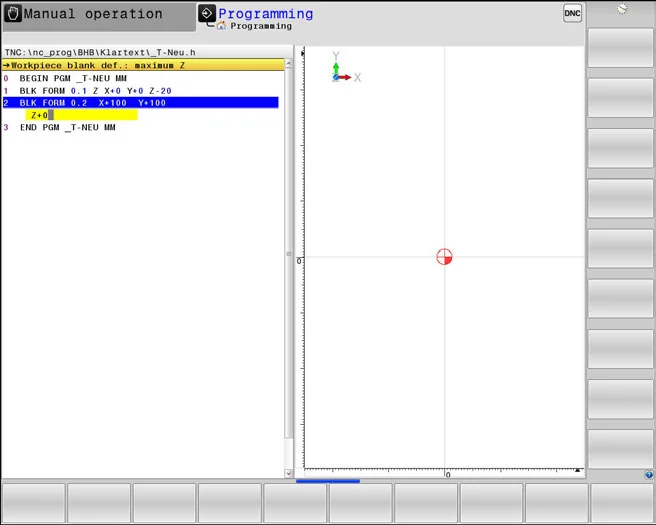
| 5 | Press the MM (or INCH) soft key | The program window opens and the blank form (BLK FORM) dialog starts |
| 6 | Press the soft key for a rectangular blank | Prompt: Working plane in graphic: XY |
| 7 | Enter the spindle axis, e.g. Z | Workpiece blank def.: minimum |
| 8 | Enter X, Y, Z of the MIN point, confirming each with ENT | Workpiece blank def.: maximum |
| 9 | Enter X, Y, Z of the MAX point, confirming each with ENT | The BEGIN PGM, BLK FORM and END PGM blocks are created |
| Block | Meaning |
|---|---|
0 BEGIN PGM NEW MM | Program start, name, unit of measure |
1 BLK FORM 0.1 Z X+0 Y+0 Z-40 | Spindle axis, MIN point of the blank |
2 BLK FORM 0.2 X+100 Y+100 Z+0 | MAX point of the blank |
3 END PGM NEW MM | Program end |
The control generates the block numbers and the BEGIN and END blocks itself. The blank form is only needed to test the program graphically; if you don’t want one, cancel the dialog with DEL at the Working plane in graphic prompt.
Which characters can you use in a program name?
File names should only contain these characters: A–Z a–z 0–9 . _ -. Spaces and any other characters can cause problems during data transfer. The full path including drive, directory and extension must not exceed 255 characters.
How do you enter a block in a Heidenhain program?
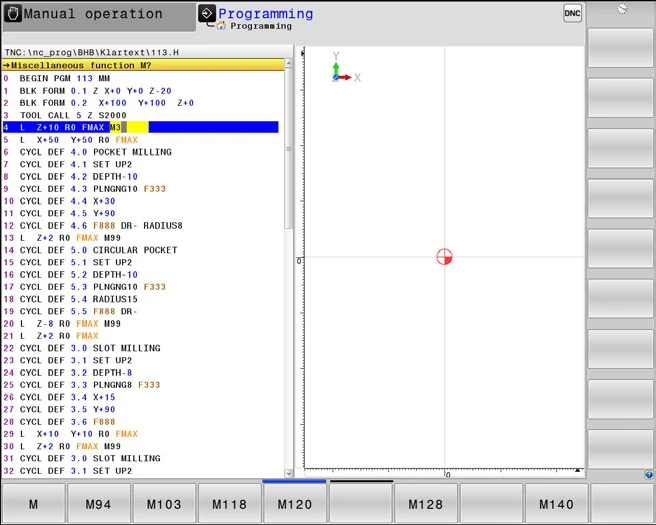
Each line of a Heidenhain program is called an NC block. A block starts with a dialog key (e.g. straight line L) and the control asks for the required data one by one in the header. Below is the manual’s example: L X+10 Y+5 R0 F100 M3.
| Step | What to do | What you see |
|---|---|---|
| 1 | Press a path function key (straight line L) | Prompt: COORDINATES? |
| 2 | Axis key X, 10; axis key Y, 5; ENT | Prompt: Radius comp.: RL/RR/no comp.? |
| 3 | ENT for no radius compensation | Prompt: Feed rate F=? / F MAX = ENT |
| 4 | Type 100, ENT (just ENT for rapid traverse) | Prompt: Miscellaneous function M? |
| 5 | Type 3 (M3 spindle on clockwise) | – |
| 6 | Close the block with END | The block appears: 3 L X+10 Y+5 R0 F100 M3 |
Which keys are used during the dialog?
| Key / soft key | What it does |
|---|---|
| ENT | Confirms the entry and goes to the next question |
| NO ENT | Skips the question (that word is not written) |
| END | Ends the dialog immediately and saves the block |
| DEL | Aborts the dialog and deletes the block |
How do you capture the actual axis position in the program?
To move the tool to a point by hand and write that position into the program:
| Step | What to do | What you see |
|---|---|---|
| 1 | Move the input box to the word where the position should go | – |
| 2 | Press the actual position capture key | The soft-key row shows the axes you can capture |
| 3 | Select the axis | The current position of the axis is written into the input box |
In the working plane the control always captures the tool center coordinates; in the tool axis it captures the tool tip, taking the active tool length into account. The function is not allowed while tilting the working plane is active.
How do you edit a program on a Heidenhain control?
Important: You cannot edit a program while it is being run in a machine operating mode. Stop the program or select another one.
| Key / soft key | What it does |
|---|---|
| Up / down arrow | Goes from block to block |
| Right / left arrow | Selects individual words in a block |
| GOTO | Type a block number and press ENT to jump to it. Or type a number of lines and use the N LINES soft key to jump up/down |
| CE | Sets the selected word to zero, clears a wrong value, clears a clearable error message |
| NO ENT | Deletes the selected word |
| DEL | Deletes the selected block; deletes cycles and program sections |
| INSERT LAST NC BLOCK | Inserts the block you last edited or deleted |
How do you change a value in a block?
| Step | What to do | What you see |
|---|---|---|
| 1 | Select the block with the arrow keys | – |
| 2 | Select the word to change with the right/left arrow (e.g. F100) | The dialog prompt for that word appears |
| 3 | Type the new value | It overwrites the old value |
| 4 | Press END | The change is applied to the block |
To add a word to a block, press the right/left arrow until the dialog you want appears, then enter the value.
How do you insert a new block in the middle of a program?
Select the block after which the new block should go and start the dialog (e.g. the L key). The new block is inserted below the selected block.
How do you delete a block from a program?
| Step | What to do | What you see |
|---|---|---|
| 1 | Select the block to delete with the arrow keys | – |
| 2 | Press DEL | The block is deleted |
| 3 | If you deleted the wrong one: INSERT LAST NC BLOCK soft key | The deleted block is inserted again |
How do you save or undo changes?
The control normally saves changes automatically when you switch the operating mode or open the file manager. To save or undo deliberately, first switch to the soft-key row containing the saving functions.
| Action | Soft key | Result |
|---|---|---|
| Save | STORE | All changes since the last save are saved |
| Save as | SAVE AS → (SWITCH for the folder if needed) → name → OK or ENT | The program is saved to a new file; it also appears under LAST FILES in the file manager |
| Undo changes | CANCEL CHANGE → YES or ENT | All changes since the last save are undone; NO to abort |
Tip: Before correcting a CAM program, use SAVE AS to keep a copy. If something goes wrong you still have the original.
How do you copy, cut or delete a section of a program?
| Step | What to do | What you see |
|---|---|---|
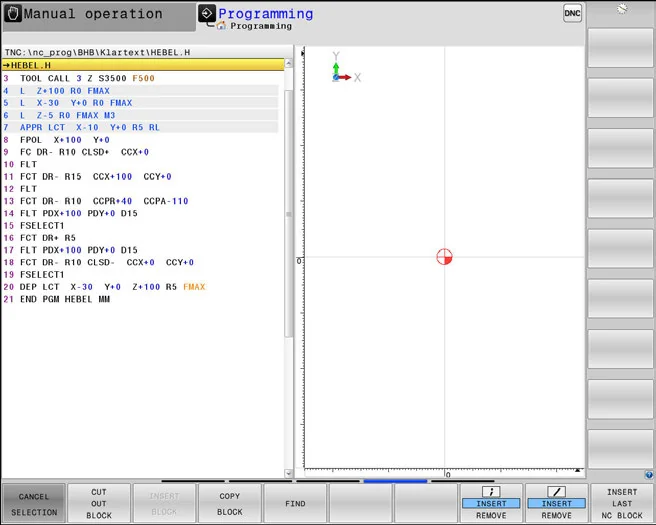
| 1 | Switch to the soft-key row with the marking functions | – |
| 2 | Select the first block of the section, SELECT BLOCK soft key | The block is highlighted and CANCEL SELECTION appears |
| 3 | Move the cursor to the last block of the section | All marked blocks are shown in a different color |
| 4 | COPY BLOCK to copy, CUT OUT BLOCK to cut (delete) | The section is stored in memory; with cut it is removed from the program |
| 5 | Select the block after which the section should be inserted | – |
| 6 | INSERT BLOCK soft key | The section is inserted |
| 7 | Finish with CANCEL SELECTION | – |
To insert the section into another program, open that program from the file manager in step 5 and select the block there.
How do you search for and replace text in a program?
How do you search for text?
| Step | What to do | What you see |
|---|---|---|
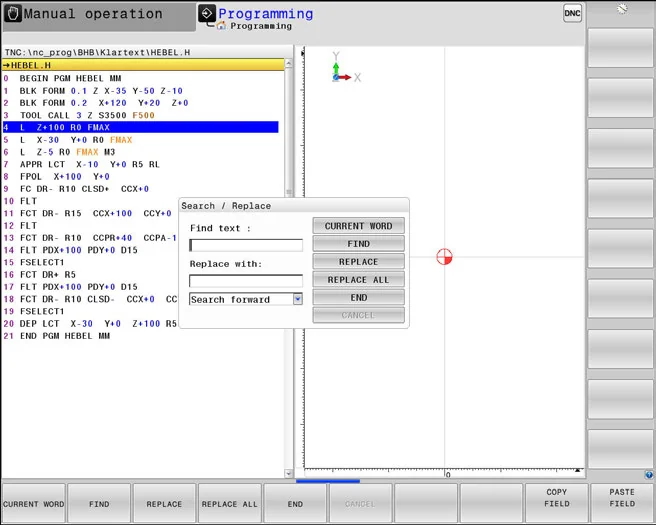
| 1 | Press the FIND soft key | The search window opens |
| 2 | Type the text, e.g. TOOL | – |
| 3 | Select forward or backward search | – |
| 4 | FIND soft key | Jumps to the next block containing the text; FIND again for the next one |
| 5 | End the search with the END soft key | – |
How do you replace a value throughout the program?
| Step | What to do | What you see |
|---|---|---|
| 1 | Select a block containing the word, FIND soft key | The search window opens |
| 2 | CURRENT WORD soft key (press again if needed) | The word in the block is taken as the search text |
| 3 | Enter the replacement text, FIND | Jumps to the next occurrence |
| 4 | REPLACE: replace and go to the next · REPLACE ALL: replace all · FIND: skip without replacing | – |
| 5 | END soft key | – |
Caution: Text replaced with REPLACE ALL cannot be restored. Make sure you do not change text that should stay. Search and replace is not possible if the program is protected or currently being run.
How do you add a comment to a program?
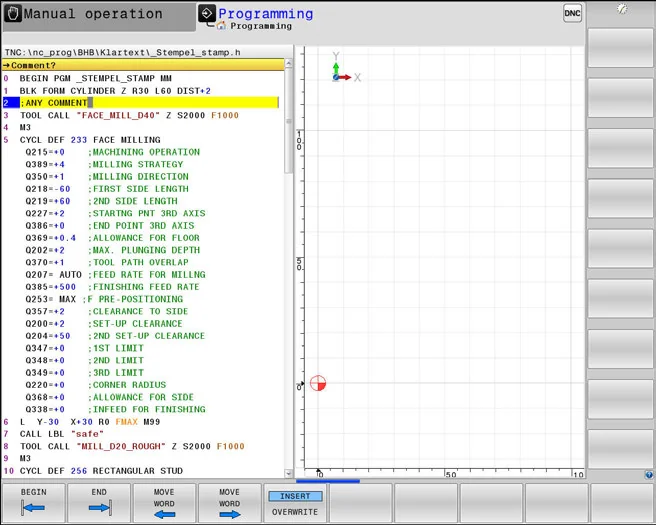
Comments are the easiest way for operators to leave notes such as “check first part” in a program. A comment starts with the ; (semicolon) key on the alphabetic keyboard. The last character of a comment must not be ~.
| When | What to do |
|---|---|
| While entering a block | Enter the block data, press ;, type the comment at the Comment? prompt, END |
| Afterwards, on an existing block | Select the block, go to the last word with the right arrow, ;, type the comment, END |
| As a separate block | Select the block after which the comment goes, ;, type the comment, END |
How do you temporarily disable a block by commenting it out?
Manuals for newer NC software (SW 08 and later) include a function to turn an existing block into a comment. Select the block and press the INSERT COMMENT soft key (or < on the alphabetic keyboard); a ; is added at the start of the block, then press END. To reverse it, select the block, press REMOVE COMMENT (or >) and END. If your software version does not have it, it cannot be used.
How do you delete a program file on a Heidenhain control?
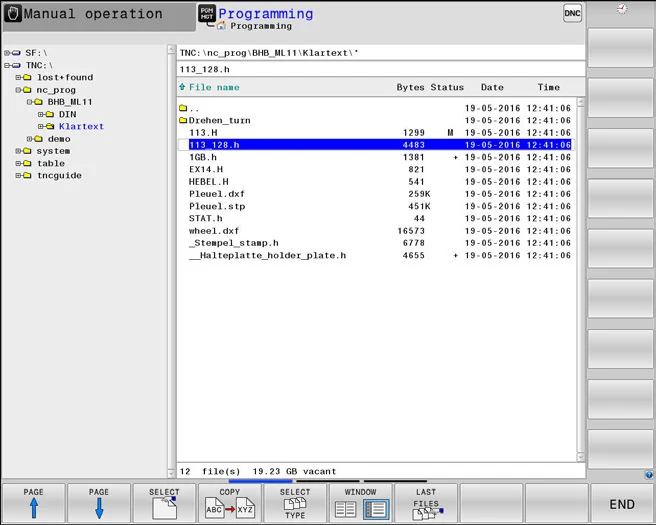
Caution, data loss: A deleted file cannot be restored; the control does not back it up first (there is no recycle bin). Back up important programs regularly to a USB drive or the network.
| Step | What to do | What you see |
|---|---|---|
| 1 | Press PGM MGT | The file manager opens |
| 2 | Select the directory on the left and the file on the right | – |
| 3 | Press the DELETE soft key | You are asked whether to delete the file |
| 4 | OK to confirm, CANCEL to abort | The file is deleted |
A directory is deleted the same way; the control then asks whether to delete the directory with all its subdirectories and files.
How do you delete several programs at once?
| Step | What to do | What you see |
|---|---|---|
| 1 | Move to the first file, TAG soft key | The tagging soft keys appear |
| 2 | TAG FILE soft key; go to the next file and repeat | The files are tagged |
| 3 | Leave the active soft-key row, DELETE | The tagged files are deleted (after confirmation) |
How do you protect a program from accidental deletion?
| Step | What to do | What you see |
|---|---|---|
| 1 | Move to the file to protect | – |
| 2 | MORE FUNCTIONS soft key | – |
| 3 | PROTECT soft key | The file is tagged with the protected symbol |
To remove the protection, use the same path and press UNPROTECT. Search and replace is not possible in a protected program. To rename a file use the RENAME soft key; the file type (.H, .I) cannot be changed.
Frequently asked questions
Why can’t I edit the program that is running?
The control does not allow editing a program that is being run in a machine operating mode. Stop the program or select another program to edit.
How do you delete a block on a Heidenhain control?
In Programming, select the block with the arrow keys and press DEL. If you deleted the wrong block, the INSERT LAST NC BLOCK soft key inserts it again.
Can a deleted program be restored?
No. A file deleted with DELETE in the file manager cannot be restored. Back up important programs regularly and protect them with PROTECT if needed.
Can changes be undone?
Yes. CANCEL CHANGE in the saving soft-key row undoes all changes since the last save. Changes made with REPLACE ALL cannot be undone.
How do you jump to a block in a long CAM program?
Press GOTO, type the block number and confirm with ENT. To look for a word use the FIND soft key.
Heidenhain TNC 640 training series
- 1. Heidenhain TNC 640 Keys, Screen and Operating Modes
- 2. Entering, Editing and Deleting Programs on Heidenhain (this page)
- 3. Transferring CAM Programs to Heidenhain and File Management
- 4. Heidenhain Tool Length Setting: Single Tool and All Tools
- 5. Setting the Work Zero (Preset) on Heidenhain
- 6. Resuming an Interrupted Program on Heidenhain
- 7. Heidenhain Error Messages, PLC Messages and MOD Settings
- 8. Heidenhain Cycles: Drilling, Tapping and Pockets
- 9. Mill-Turning on Heidenhain: Turning Mode and 800-Series Cycles
Safety notice and disclaimer
Check every program you enter or correct by hand first graphically in Test Run, then on the machine in single block with a low feed override. Soft-key names and positions may differ with the NC software version and machine builder; the machine manual always takes priority.
Mentor CNC cannot be held responsible for tool breakage, scrapped parts, machine damage, data loss or accidents resulting from the use of the information on this page. Responsibility lies with the person and company carrying out the work.
