
Estimated reading time: 6 minutes
What Will You Learn in This Lesson?
In this lesson you will learn:
- the main sections of the FANUC CNC control unit,
- the difference between the CNC screen and the machine operator panel,
- the MDI keyboard,
- the function keys and soft keys,
- the basic status information shown on the screen,
- the differences in appearance you may meet on different FANUC series.
This training does not teach CNC turning or milling operations; it teaches how the FANUC control unit is used.
What Is a FANUC CNC Control Unit?

The FANUC control unit is the control system that reads the programs entered into the CNC machine tool, manages the axis movements and gives the operator information about the state of the machine.
Through the control unit, the operator:
- Displays and manages programs.
- Follows the position information.
- Enters tool and workpiece offsets.
- Selects the operating mode.
- Starts, stops or steps through the program in a controlled way.
- Examines alarms and operator messages.
- Transfers programs and some operator data to external media.
Controls such as FANUC 0-T, 0-TC, 16T, 18T, 21T and 0i-TC are found on lathes, while controls such as FANUC 0-M, 16M, 18M, 21M, 0i-MB and 0i-MF are found on milling machines and vertical machining centers.
Although the screen design of older and newer controls differs, the basic FANUC operating logic is largely common.
The Three Main Sections of the Control Panel
On a CNC machine with a FANUC control, the panel in front of the operator can be examined in three main sections:
- CNC screen
- MDI keyboard
- Machine operator panel
These sections may be next to each other or in separate places.
1. The CNC Screen
The CNC screen is the section where the information in the control unit is displayed.
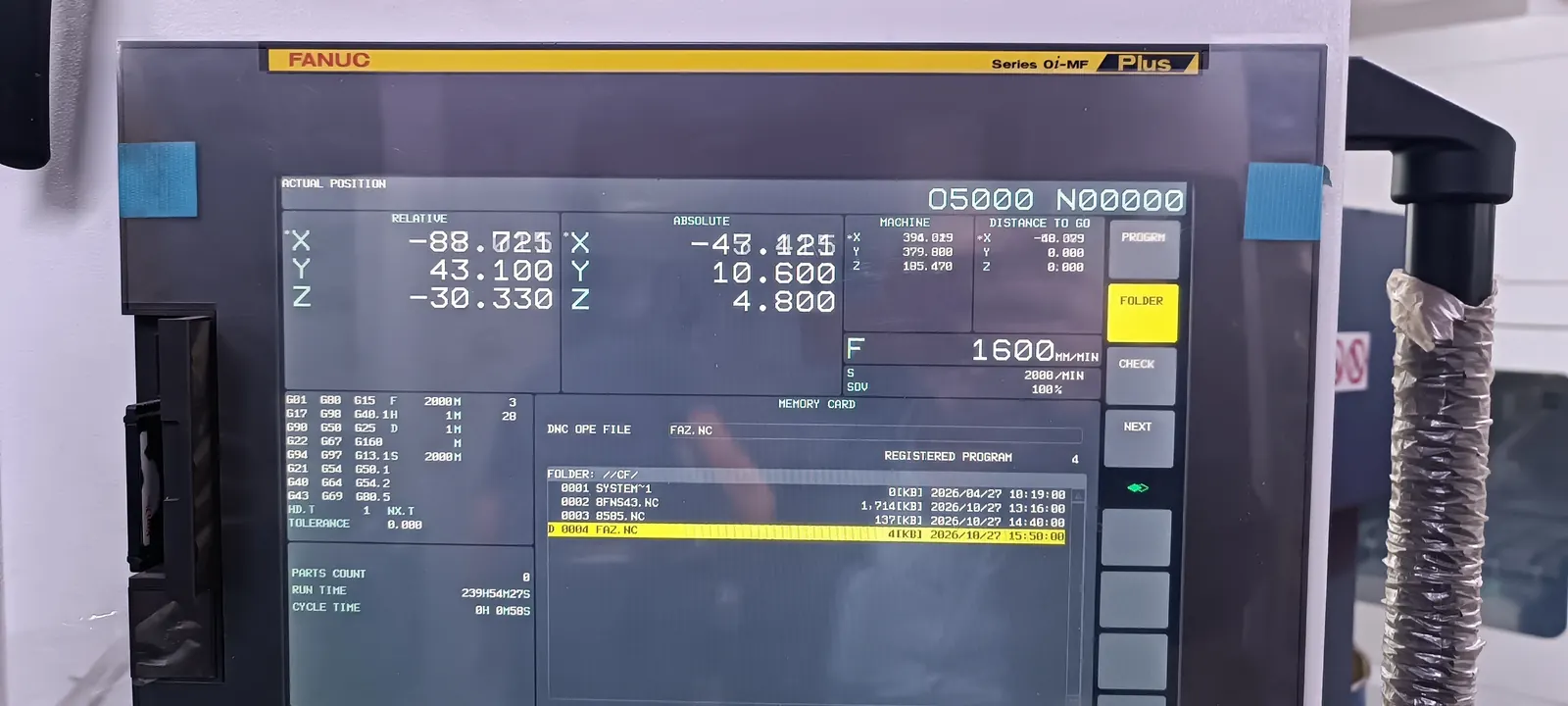
Depending on the page selected, the following information can be seen on the screen:
- Active program number
- Sequence number being executed
- Axis positions
- Active G codes
- Active M, S, T and F information
- Tool and workpiece offsets
- Program list
- Alarm and operator messages
- Graphics or tool path
- Operating mode
- Program execution status
For example, if O0100 is shown on the screen, this is the number of the selected program. An expression such as N120 shows a particular sequence number in the program.
In one area of the screen, the active operating mode such as MEM, MDI, EDIT or JOG may be displayed. Status expressions such as STRT while the program is running, HOLD when it is held, and ALM when an alarm occurs may be seen.
The position and the way these expressions are displayed may change according to the control series.
Older and newer FANUC screens
On older controls such as FANUC Series 0, 16, 18 and 21 you may meet smaller screens, screens using a limited number of colors, or CRT type screens.
On controls such as FANUC 0i-TC and 0i-MB there are more advanced LCD screens with soft keys along the bottom of the screen. On newer controls in the FANUC 0i-TF, 0i-MF and 0i-F Plus class, the screen design may be more advanced.
Even if the screen changes, the basic information the operator looks for is the same:
- Which mode am I in?
- Which program is selected?
- Which block is running?
- Where are the axes?
- Is there an alarm on the machine?
- Which tool and offset are active?
2. The MDI Keyboard
MDI stands for “Manual Data Input”.

The MDI keyboard allows programs, offsets, settings and numerical commands to be entered into the control unit.
The keyboard generally contains the following key groups:
Letter and number keys
Addresses used when writing a program, such as G, M, X, Y, Z, U, W, S, T, F, N and O, together with numerical values, are entered from this section.
For example:
G00 X100. Z50.this line can be written using the MDI keyboard.
The INPUT key
It is used to save an entered value to the relevant screen or to transfer it into the input field.
INPUT and INSERT, which is used in program editing, do not have the same task. INPUT is mostly used to enter values on screens and to confirm data entry.
The EOB key
EOB means “End of Block”. It indicates that the program line is completed.

On the screen it mostly appears as the ; character.
INSERT, ALTER and DELETE
These keys are used during program editing:
INSERT: Adds a new word or block.ALTER: Changes the selected expression.DELETE: Deletes the selected expression or block.
These operations will be covered in detail in Lesson 4.
The CAN key
It is used to cancel an entry that has been written incorrectly or has not yet been saved.
CURSOR and PAGE keys
- The CURSOR keys move the selection area on the screen.
- The PAGE keys allow you to move between pages.
On some controls classic arrow keys are used, while on some models different symbols may be used.
The RESET key
The RESET key is not on the machine operator panel but on the MDI keyboard. On most FANUC keypads it is in the top right area.
RESET is used to reset the operation being carried out by the CNC, to end some operating states or to clear suitable alarms.
Emergency Stop is the safety button used to stop machine movement urgently in a dangerous situation, and it is located on the machine operator panel.
RESET is not used in place of the emergency stop button. Nor is the emergency stop a normal method of stopping a program.
3. Function Keys
The function keys open the main screen groups in the control unit.
The common function keys are:
POS: Position screensPROG: Program screenOFFSET/SETTING: Offset and setting screensSYSTEM: System and basic diagnosis informationMESSAGE: Alarm and message screensGRAPHorCUSTOM/GRAPH: Graphics and custom screens
For example, an operator who wants to see the axis positions uses POS, and an operator who wants to display the program uses the PROG key.
Not every FANUC control has all the keys under the same name. Some screens are reached first with a function key and then with the soft keys along the bottom of the screen.
4. Soft Keys
Soft keys are the keys at the bottom of the screen whose tasks change according to the page that is open.

For example, on the POS screen the following options may be seen:
- ABS
- REL
- ALL
- HNDL
- OPRT
On the program screen the options change according to the operating mode. At the first level the following keys are mostly present:
- PRGRM
- DIR (program list)
- CHECK
- CURRNT
- NEXT
- OPRT
The program search functions are not at the first level; they are generally found under the OPRT menu:
- O SRH — program number search
- N SRH — sequence number search
- F SRH — file search
- REWIND — return to the beginning of the program
This distinction matters: without entering the OPRT menu the search keys may not appear on the screen. The key names and their order differ according to the FANUC series and the operating mode; take the manual of your own control as the reference.
The important point here is this: the physical key stays in the same place, but the task of the key changes according to the text shown above it on the screen.
In some operations you move to the second and third soft key groups by using the right arrow or the continue symbol.
Common mistake: pressing the same physical key out of habit without reading the options at the bottom of the screen. The task of a soft key can change according to the screen that is open.
5. The Machine Operator Panel
The machine operator panel is different from the CNC screen and the MDI keyboard. An important part of the manual and automatic operating controls of the machine is located here.

The following buttons and switches may be found on the panel:
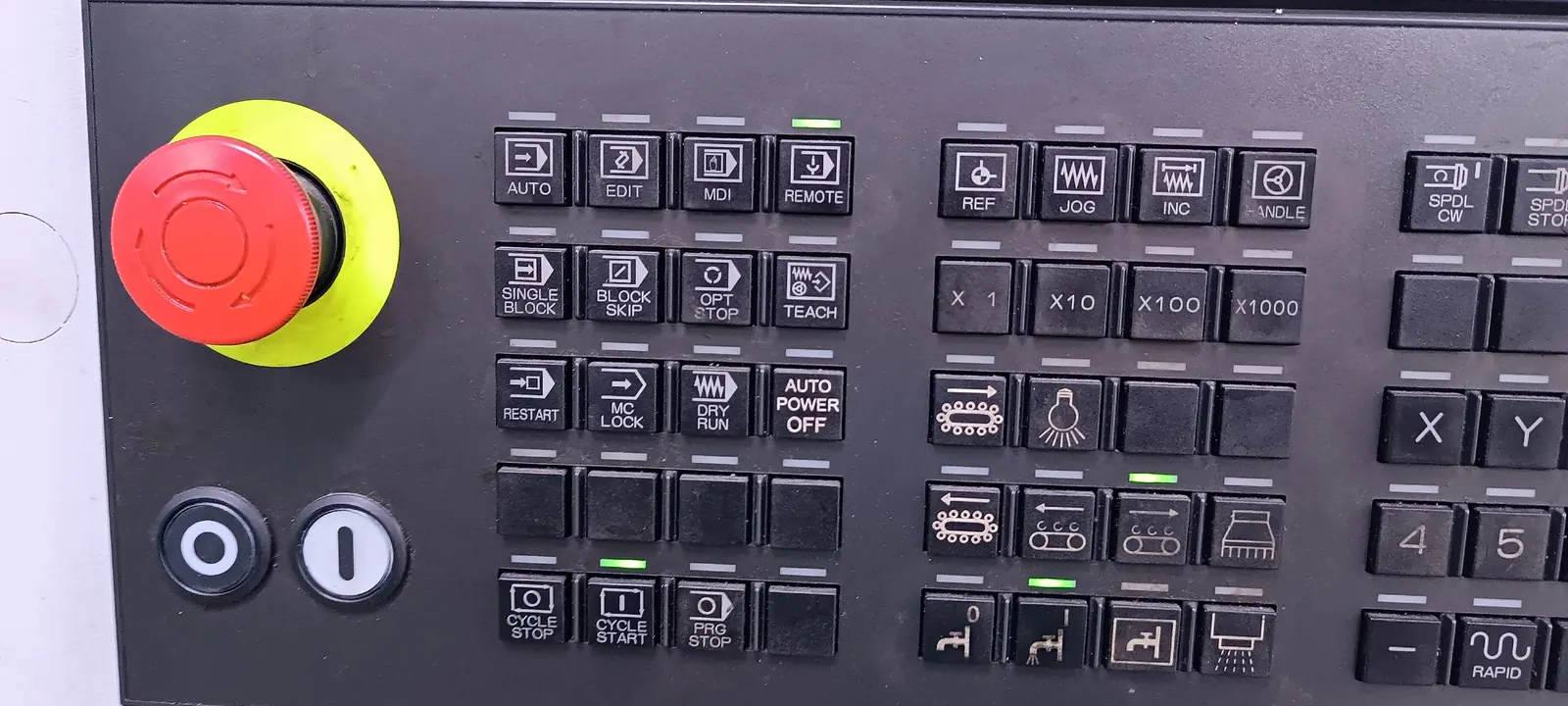
- Operating mode selection
- Cycle Start
- Feed Hold
- Emergency Stop
- Axis selection
- JOG movement keys
- Handwheel step selection
- Feed Override
- Rapid Override
- Spindle Start and Spindle Stop
- Single Block
- Optional Stop
- Block Skip
- Coolant control
- Door, chuck, tailstock or tool change controls
FANUC supplies the CNC control system; the layout of the machine operator panel and some of its functions are configured by the machine tool builder. For this reason, the operator panels of two different machines using the same FANUC 0i control may not look the same.
The Habit of Reading the FANUC Panel
Before carrying out any operation, checking the following information is a good operator habit:
- What is the active operating mode?
- Which program is selected?
- Is there an alarm or message on the machine?
- Are the axis positions safe?
- Is the active tool and offset information correct?
- What value are the Feed and Rapid Override set to?
- Are Single Block, Optional Stop or Block Skip switched on?
These checks reduce the risk of working in the wrong mode or of unexpected program movement.
FANUC Note
In FANUC model names, the letters T and M mostly indicate the application area of the control:
T: Lathe type controlM: Milling or machining center type control
For example, FANUC 0i-TC is a lathe control and FANUC 0i-MB is a machining center control. However, the model name alone does not show all the features of the machine. The options and the configuration of the machine tool builder are also important.
The screen layout, key names or some functions may differ according to the FANUC control series and the configuration of the machine tool builder. Check the operation manual of your own FANUC control and machine.
Short Summary
- The FANUC panel consists of the CNC screen, the MDI keyboard and the machine operator panel.
- The CNC screen shows program, position, offset, alarm and operating status information.
- The MDI keyboard is used to enter letters, numbers and commands.
- The function keys open the main screen groups.
- The task of a soft key changes according to the screen that is open.
- The layout of the machine operator panel may differ according to the machine tool builder.
- RESET and Emergency Stop do not have the same function.
- Even though FANUC series look different, the basic operating logic is largely common.
Test Yourself
- What is the basic difference between the CNC screen and the machine operator panel?
- Which screens do the
POSandPROGfunction keys open? - Why is the task of a soft key not fixed?
- What does the EOB key on the MDI keyboard indicate?
- What is the difference between RESET and Emergency Stop?
- What do the letters T and M in a FANUC model name generally mean?
- Which status information should be checked before doing anything on the control panel?