
Page 3 of the Heidenhain TNC 640 training series shows how to get a CAM program onto the machine: transfer by USB stick, network drive and TNCremo, copying files, creating folders and backing up. Every operation is laid out as a key-by-key table. Soft-key names follow the HEIDENHAIN user’s manual.
HEIDENHAIN conversational programs use the .H extension and DIN/ISO (G-code) programs use .I. The file posted from CAM must have one of these. Use only letters, digits, dot, underscore and hyphen in file names; other characters can cause problems during transfer.
How do you use the file manager (PGM MGT)?
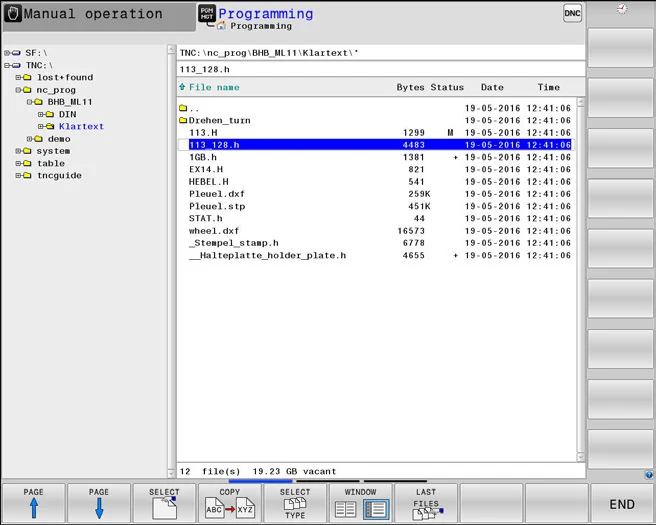
| Screen area | What it shows |
|---|---|
| Left window | Drives and directories. Subdirectories are expanded and collapsed with -/+ or ENT |
| Right window | Files in the selected directory: file name, bytes, status, date and time |
| Top line | Selected path, e.g. TNC:\AUFTR1\NCPROG\PROG1.H. The full path including drive, directory and extension must not exceed 255 characters |
| Bottom line | Soft keys: SELECT, COPY, SELECT TYPE, WINDOW, LAST FILES and others |
How do you select a drive, directory and file?
| Step | What to do | What you see |
|---|---|---|
| 1 | Press PGM MGT | The file manager opens |
| 2 | Highlight the drive in the left window, SELECT soft key or ENT | The drive is selected |
| 3 | Highlight the directory in the left window | The right window shows the files in it |
| 4 | SELECT TYPE soft key, then the file type or SHOW ALL | Only files of the chosen type are listed |
| 5 | Highlight the file in the right window, SELECT or ENT | The file is activated in the operating mode from which you called PGM MGT |
Tip: If you type the first letters of the file you are looking for, the cursor jumps to the first program starting with them. Wildcards such as 4*.h can also be used in SELECT TYPE (all .h files starting with 4).
How do you transfer a program from a USB stick to a Heidenhain control?
Caution, data loss: The manual recommends the USB interface only for transferring and backing up. Do not edit or run programs on the USB stick; copy them to the TNC drive first.
| Topic | What the manual says |
|---|---|
| Supported file systems | Memory sticks, hard disks and floppy drives with FAT/VFAT; CD-ROM with Joliet (ISO9660) |
| Not supported | Other file systems such as NTFS. The control then shows an error message that it does not support the USB device |
| USB hub | The same message may appear when a hub is connected; acknowledge it with CE |
| Detection | A suitable USB device is detected automatically and appears as a separate drive in the directory tree |
| Drive name | The machine tool builder may have assigned fixed names to USB devices; see the machine manual |
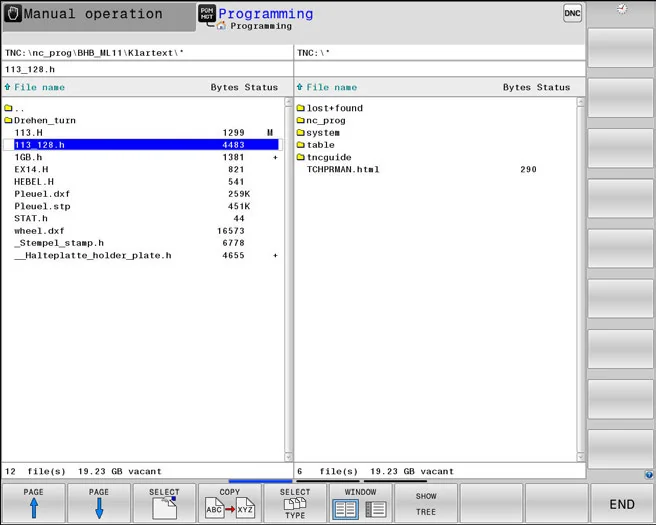
| Step | What to do | What you see |
|---|---|---|
| 1 | Plug in the USB stick, press PGM MGT | The file manager opens; the USB device appears in the directory tree |
| 2 | Press the WINDOW soft key | The screen is split into two windows (data transfer layout) |
| 3 | In one window use SHOW TREE to select the USB drive and directory, then SHOW FILES | The programs on the USB stick are listed |
| 4 | In the other window select the target directory on the TNC drive the same way | The target directory is open |
| 5 | Move the cursor to the file to transfer (the arrow keys also switch between the windows) | The file is highlighted |
| 6 | COPY soft key, then the OK soft key or ENT | A status window shows the copying progress |
| 7 | Press WINDOW again | The standard file manager view returns |
While a large file is written to a USB device, the control shows a write-access dialog until the process is finished. The dialog can be hidden with a soft key; the transfer continues in the background and a warning stays on screen until it is complete.
How do you safely remove the USB stick?
| Step | What to do | What you see |
|---|---|---|
| 1 | Press PGM MGT, move the cursor to the left window | – |
| 2 | Highlight the USB device to be removed | – |
| 3 | Shift the soft-key row, MORE FUNCTIONS soft key | The additional functions appear |
| 4 | Shift the soft-key row again and press the soft key for removing USB devices | The device disappears from the directory tree and the control reports that it can now be removed |
| 5 | Unplug the USB stick | – |
How do you copy a file and create a directory?
How do you copy a single program?
| Step | What to do | What you see |
|---|---|---|
| 1 | Move the cursor to the file, COPY soft key | A pop-up window opens |
| 2 | To copy into the same directory: type the new file name, ENT or OK | The file is copied under the new name |
| 3 | To copy into another directory: press the soft key for the target directory, select it, ENT or OK | The file is copied there under the same name |
The original file is kept in both cases. If the target directory already contains a file with the same name, the control asks whether to overwrite it: OK overwrites, CANCEL does not.
How do you create a new directory?
| Step | What to do | What you see |
|---|---|---|
| 1 | In the left window, highlight the directory in which the new one should be created | – |
| 2 | Press the soft key for a new directory | You are asked for the name |
| 3 | Type the directory name, ENT | – |
| 4 | OK soft key (CANCEL to abort) | The directory is created |
How do you find the programs you opened last?
Press PGM MGT, then the LAST FILES soft key. The control lists the last ten files selected; choose one with the arrow keys and press the OK soft key or ENT.
How do you get programs over the network (Ethernet)?
The TNC has an Ethernet card as standard. If the control is connected to a network, additional drives appear in the left window of the file manager; selecting drives and copying files work the same way on network drives, as far as your access rights allow. The manual asks you to have the network settings made by a network specialist.
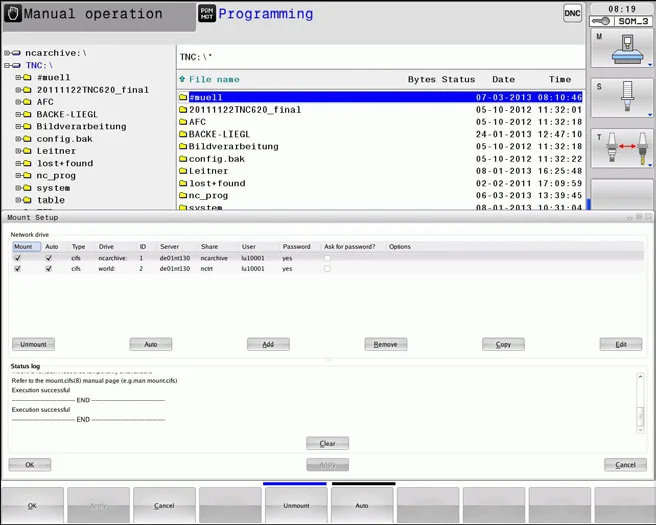
| Step | What to do | What you see |
|---|---|---|
| 1 | Press PGM MGT | The file manager opens |
| 2 | Press the network soft key on the second soft-key row | The network settings appear |
| 3 | Press the soft key for managing network drives | The available network drives are listed |
| Button | What it does |
|---|---|
| Mount | Connects the network drive; the Mount column is marked while the connection is active |
| Unmount | Ends the network connection |
| Auto | Connects automatically when the control is switched on; the Auto column is marked |
| Add / Remove | Creates a new network connection / deletes an existing one |
| Copy / Edit | Copies / edits a network connection |
| Clear | Clears the status window |
How do you transfer programs from a PC with TNCremo?
TNCremo is HEIDENHAIN’s free data transfer software; it works over the serial interface or Ethernet and can be downloaded from the HEIDENHAIN website.
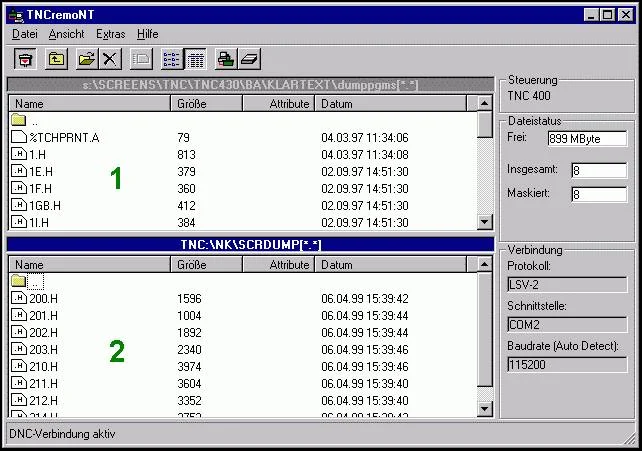
| Step | What to do | What you see |
|---|---|---|
| 1 | Start TNCremo on the PC | The upper window (1) shows the files of the active PC directory |
| 2 | File, Setup connection | The lower window (2) shows the file and directory structure of the TNC |
| 3 | PC to TNC: select the file in the upper window and drag it into the lower window | The file is transferred to the TNC |
| 4 | TNC to PC: select the file in the lower window and drag it into the upper window | The file is transferred to the PC |
To control the transfer from the machine instead, select Extras, TNCserver in TNCremo and then copy the files on the TNC with PGM MGT in the two-window layout. Before transferring a program from the TNC to the PC, make sure it has been saved on the TNC; the control saves changes automatically when you switch the operating mode or press PGM MGT.
How is the RS-232 serial interface set for TNCserver?
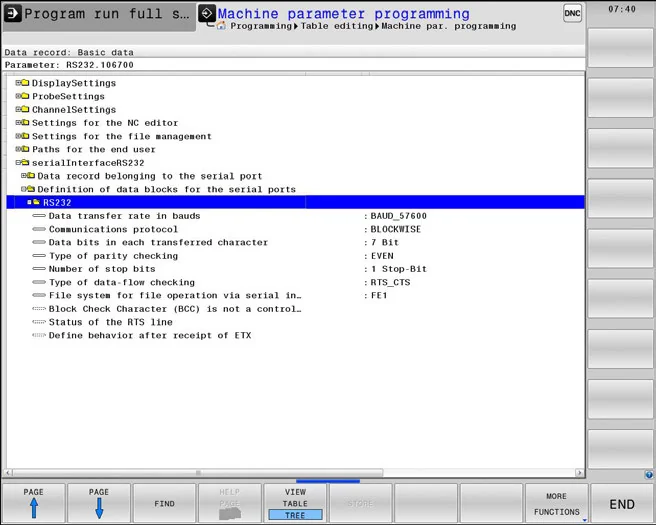
The serial interface is set in the user parameters opened with the MOD key and code number 123, in the RS232 folder. The manual gives these values for transfer with TNCserver:
| Parameter | Value |
|---|---|
| Baud rate | Must match the setting in TNCserver |
| Data transfer protocol | BLOCKWISE |
| Data bits | 7 bits |
| Parity | EVEN |
| Stop bits | 1 stop bit |
| Handshake | RTS_CTS |
| File system | FE1 |
With TNCremo the LSV2 protocol is used automatically. According to the manual, blockwise reception and simultaneous execution of the same NC program is not supported. Note the existing values before changing parameters; if in doubt, ask the machine tool builder.
What should you watch when running a CAM program on the machine?
HEIDENHAIN’s manual for setup and running NC programs (SW 10, 2019) gives these recommendations for CAM programs. The ones that concern the operator:
| Topic | What the manual recommends |
|---|---|
| Readability | Use the structuring and commenting functions in large NC programs |
| Size corrections | If fits are output from CAM with RL/RR tool radius compensation, the operator can easily make corrections at the machine |
| Feed rates | If feed rates for positioning, plunging and milling are defined with Q parameters at the start of the program, they can be changed in one place |
| Cycle 32 TOLERANCE | The behavior of CAM programs is influenced at the control with Cycle 32; the tolerance should be at least twice the chord error set in the CAM system |
| Roughing | Cycle 32 tolerance normally between 0.05 mm and 0.3 mm |
| High-accuracy finishing | Tolerance normally between 0.002 mm and 0.006 mm |
| Finishing for surface quality | Tolerance normally between 0.010 mm and 0.020 mm |
These values depend on the dynamics of your machine. Some machine tool builders provide an additional cycle for tuning (e.g. Cycle 332); see the machine manual.
How do you back up programs?
HEIDENHAIN recommends saving newly created programs and files to a PC at regular intervals; TNCremo can be used for this. Machine-specific data such as the PLC program and machine parameters should be kept on a separate data carrier; ask the machine tool builder if necessary. Backing up the entire internal memory can take several hours. Delete files you no longer need from time to time so that there is always enough space for system files such as the tool table.
Frequently asked questions
Why doesn’t the Heidenhain control see my USB stick?
The control only supports USB devices with the FAT/VFAT file system. With an NTFS-formatted stick or a USB hub it reports that the device is not supported. Format the stick as FAT or try another one.
Can a program be run directly from the USB stick?
The manual says the USB interface should only be used for transferring and backing up, not for editing or running programs. Copy the program to the TNC drive first.
What happens if a program with the same name already exists?
The control asks whether the file in the target directory should be overwritten. OK overwrites it, CANCEL does not. To keep the old version, copy it under a different name first.
Which extension should the CAM program have?
.H for HEIDENHAIN conversational programs and .I for DIN/ISO (G-code) programs.
Is TNCremo free?
Yes. TNCremo is HEIDENHAIN’s free data transfer software and can be downloaded from the HEIDENHAIN website.
Heidenhain TNC 640 training series
- 1. Heidenhain TNC 640 Keys, Screen and Operating Modes
- 2. Entering, Editing and Deleting Programs on Heidenhain
- 3. Transferring CAM Programs to Heidenhain and File Management (this page)
- 4. Heidenhain Tool Length Setting: Single Tool and All Tools
- 5. Setting the Work Zero (Preset) on Heidenhain
- 6. Resuming an Interrupted Program on Heidenhain
- 7. Heidenhain Error Messages, PLC Messages and MOD Settings
- 8. Heidenhain Cycles: Drilling, Tapping and Pockets
- 9. Mill-Turning on Heidenhain: Turning Mode and 800-Series Cycles
Safety notice and disclaimer
Check every new CAM program first graphically in Test Run, then on the machine in single block with a low feed override. Soft-key names and positions may differ with the NC software version and machine builder; the machine manual always takes priority.
Mentor CNC cannot be held responsible for tool breakage, scrapped parts, machine damage, data loss or accidents resulting from the use of the information on this page. Responsibility lies with the person and company carrying out the work.
