
A new or edited program is at its riskiest the first time it runs on the mill: a wrong offset, the wrong tool or one bad line can turn straight into a crash. The Haas control gives you graphics mode, single block, optional stop, rapid override and, on supported machines, Safe Run to reduce that risk. This page goes through them in the order you would use them.
Step one: run the program in graphics mode
The manual calls graphics mode a safe way to troubleshoot a program: the machine does not move, and the tool path is drawn on screen.
- Make the program active ([SELECT PROGRAM]).
- Press [GRAPHICS].
- Press [CYCLE START] to draw it.
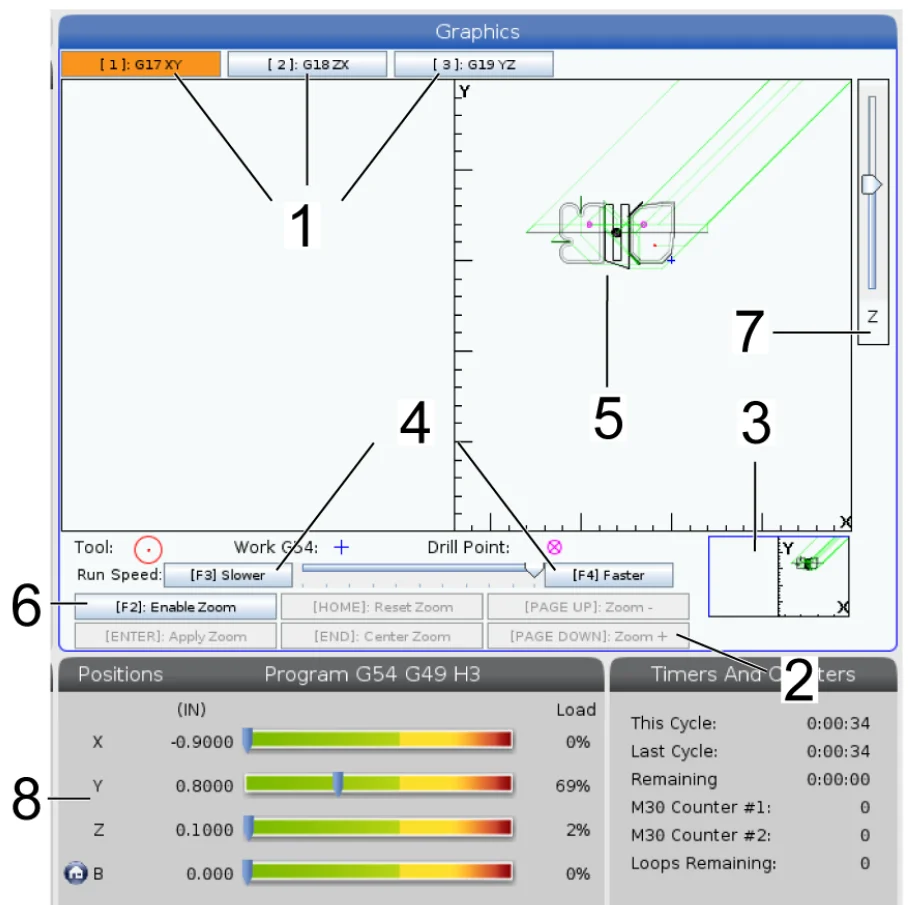
- Feed moves are black, rapid moves are green, and drill cycle locations show as an X. A rapid line that passes through the part is a crash candidate.
- F3 / F4 change the graphics speed. F2 shows the zoom window; PAGE DOWN zooms in, PAGE UP zooms out, ENTER applies. F2 then HOME returns to the full view.
- With Setting 253 on, the tool diameter is shown as a thin line; with it off, the diameter from the tool offset table is used.
Graphics mode does not simulate every machine function. It does not prove your offsets are right; it shows the program’s path.
Keys for the first run on the machine
| Key | What it does |
|---|---|
| SINGLE BLOCK | When on, each CYCLE START runs one program block |
| OPTION STOP | When on, the program stops at M01 |
| BLOCK DELETE | When on, code after a / on that line is skipped |
| 5% / 25% / 50% / 100% RAPID | Limits rapid moves to the value on the key |
| FEED HOLD | Stops axis motion; the spindle keeps turning |
A sensible order: rapid at 5% or 25%, single block on, feed override low. As the tool approaches the part, watch the distance to go on each block and confirm the tool is heading where it should. After every tool change, make sure the first Z approach carries G43 with the correct H number.
What is Safe Run and what does it do?
Safe Run does not prevent crashes; it aims to reduce damage when one happens. If the machine supports it, the MDI screen shows F3 Activate Safe Run. F3 turns it on and off, and a Safe Run watermark appears in the program pane while it is active.
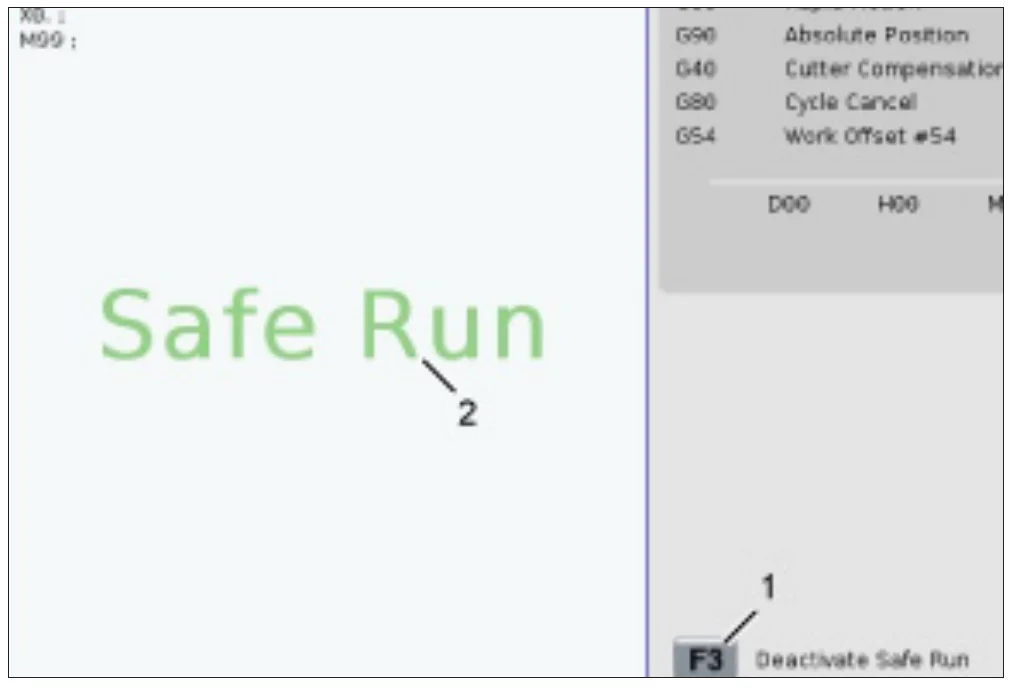
- It works only during rapid motion: G00, G28 home moves, moves to tool change and the non-cutting moves of canned cycles. It is also active during jogging.
- It is not active during feed moves, because cutting forces cannot be told apart from a crash.
- When a crash is detected, all motion stops, an alarm is raised and a popup shows which axis detected it. Clear it with reset.
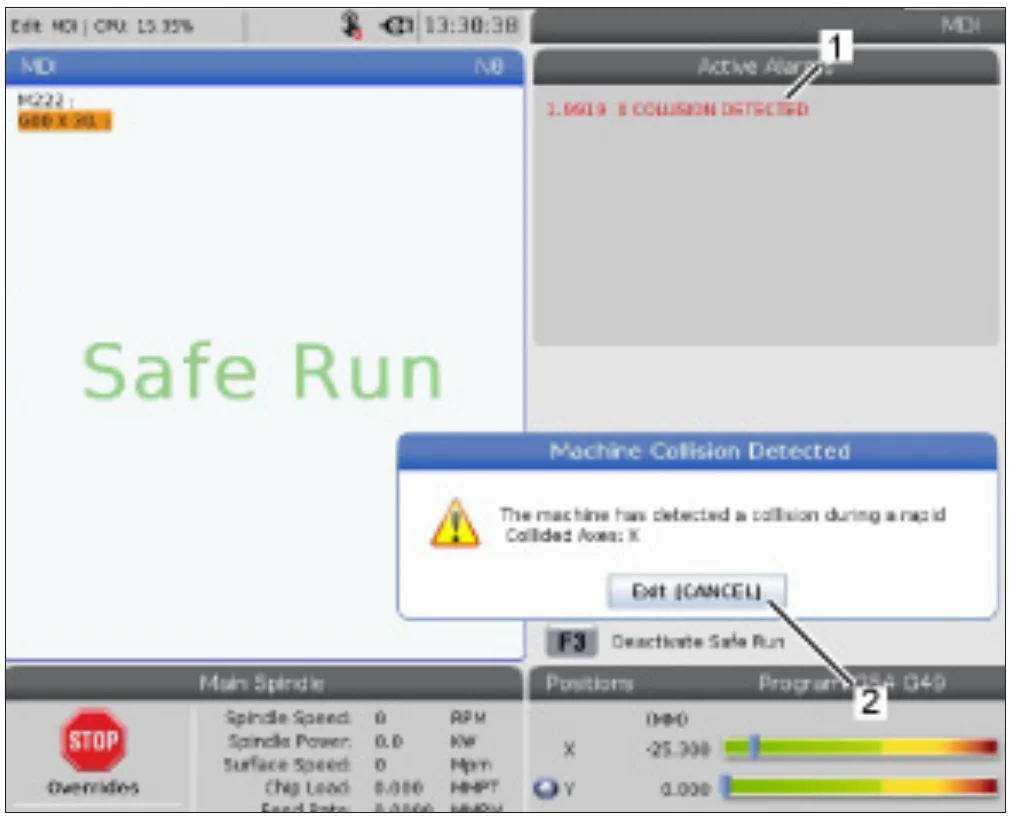
The manual warns that the retract may not fully relieve pressure on the part, and a second collision can happen after the alarm is reset. In that case turn Safe Run off and jog the axis away from the collision.
According to the Haas lathe manual, Safe Run is available from software version 100.19.000.1300, and the supported mills include VF-1 to VF-5, VM-2/3, UMC-500/750/1000 and all DM, DT and TM models. Because it lengthens cycle time significantly, it is not recommended for proven programs.
Stopping, jogging away and continuing
If you need to check something mid-cut, you can continue without restarting the program:
- Press FEED HOLD. Axes stop; the spindle keeps turning.
- Press X, Y or Z, then HANDLE JOG. The control stores the current position.
- The control shows a Jog Away message. Move the tool clear with the handle. You can switch coolant and start or stop the spindle.
- Jog to a position close to the stored one, or one with a clear rapid path back to it.
- Return to the mode that was active when you stopped (MEMORY or MDI).
- CYCLE START: the control rapids X and Y at 5% back to the feed-hold position, then returns the Z axis to that point, and goes into feed hold again.
- CYCLE START again to resume the program.
Caution: the control does not follow the path you used to jog away. Because it returns using the previous offsets, it is not safe to change tools or offsets while the program is interrupted.
Common mistakes
- Running a program at 100% rapid because it looked fine in graphics: graphics will not catch a wrong work offset or tool length.
- Using single block only for the first few lines: the riskiest moment is often the first approach after a tool change.
- Expecting Safe Run to protect feed moves: there is no crash detection during feed.
- Changing a tool after FEED HOLD and continuing: the return uses the old offsets.
FAQ
Does graphics mode show every error in a program?
No. It shows the tool path and most programming errors; it does not show wrong offsets, fixtures or every machine function.
Does every Haas mill have Safe Run?
No. The machine must be a supported model on a recent enough software version. If F3 does not appear on the MDI screen, the machine does not support it.
Where are the loading and selecting steps?
Haas mill program loading, selecting and editing. For key locations: Haas mill control pendant.
Disclaimer
The steps on this page follow the Haas operator’s manuals. Screen and key names can differ between control software versions; your machine’s manual always takes priority. Mentor CNC cannot be held responsible for damage or injury arising from the use of this information.
