
On a Haas mill, copying a program from USB into memory, choosing the program to run and correcting code all happen in one place: the device manager, opened with the [LIST PROGRAM] key. This page covers the steps on the Haas Next Generation Control (NGC) mill. For what each pendant key does, see Haas mill control pendant.
What is on the device manager (LIST PROGRAM) screen?
The tabs at the top show the memory devices the control can see: Memory (machine memory), User Data, Net Share and USB. The USB tab only appears when a USB stick is plugged into the pendant.
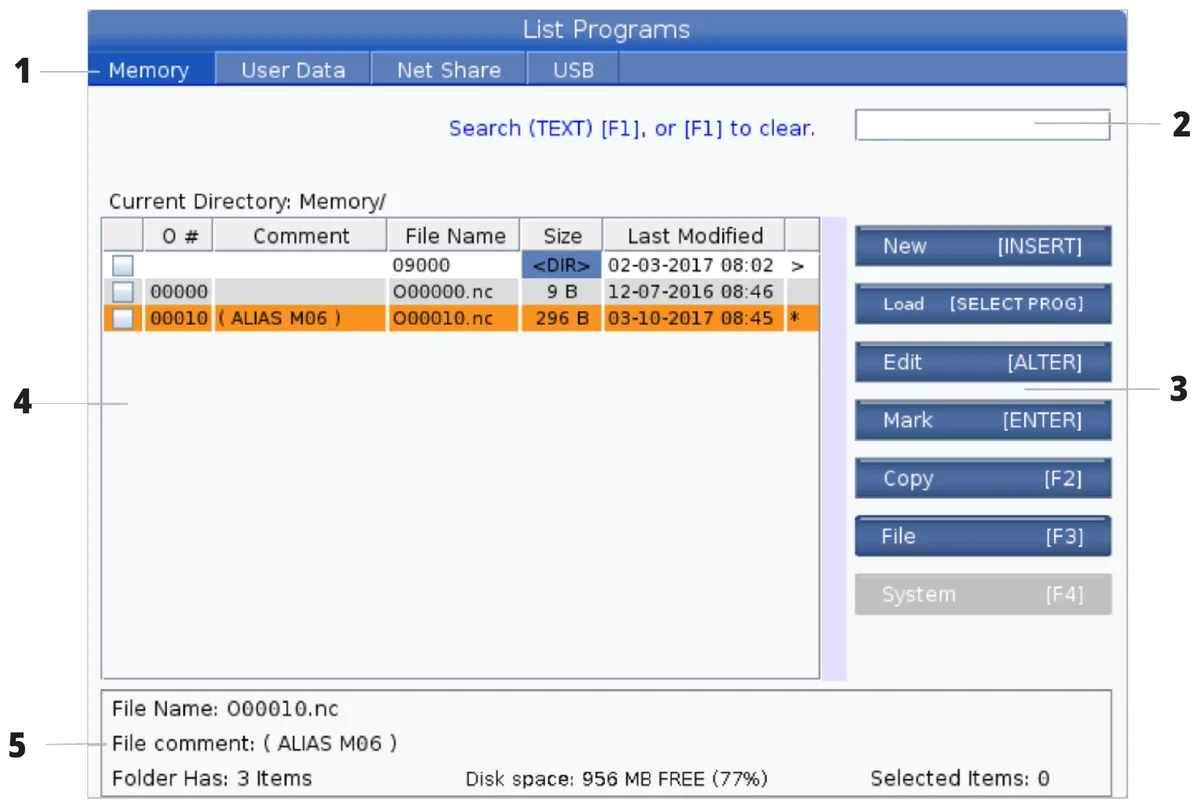
- Up/Down arrows highlight a file or directory.
- Right arrow opens the highlighted directory; directories show > in the far-right column.
- Left arrow goes back one level.
- The Current Directory line above the list shows where you are.
| Mark in the far-right column | Meaning |
|---|---|
| * | Active program, the one CYCLE START runs |
| E | Open in the program editor |
| > | Directory |
| S | Directory listed in Setting 252 as a subprogram search location |
File size and last-modified columns are hidden by default; turn them on with F3 → Show File Details.
How do you load a program from USB into Haas mill memory?
- Plug the USB stick into the USB port on the pendant.
- Press [LIST PROGRAM] and move to the USB tab with the left/right arrows.
- Highlight the program and press ENTER to check-mark it. Check-mark every program you want to copy.
- Press F2 to start the copy. The Select Device popup opens.
- Choose Memory (and a target directory if needed, entering it with the right arrow).
- Press ENTER to finish, or CANCEL to return.
Key rule: if nothing is check-marked, the operation applies only to the highlighted file. If files are check-marked, it applies only to the checked files; the highlighted file is left out unless it is checked too.
How do you select the program to run?
Highlight the program in Memory and press [SELECT PROGRAM]. It becomes active and shows * in the far-right column. The active program is the one that runs with [CYCLE START] in OPERATION:MEM mode, and it is protected from deletion while active. A check mark set with ENTER does not make a program active.
How do you create a new program on a Haas mill?
Press [INSERT] in the current directory to open the Create New Program popup.
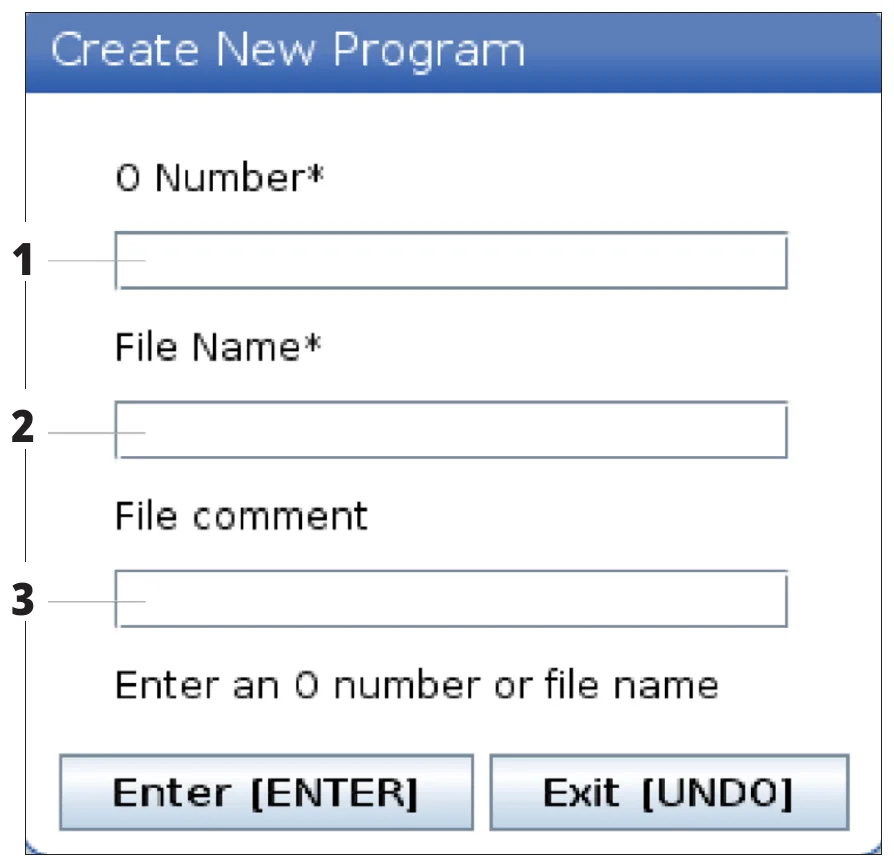
- O number (required in Memory): up to 5 digits. The control adds the letter O and pads leading zeros (1 becomes O00001).
- File name (optional): the name used when the program is copied to another device such as USB.
- File comment (optional): written as a comment on the first line, next to the O number.
Press ENTER to save or UNDO to cancel. Do not use O09xxx numbers for new programs: the manual notes that macro programs often use this range and overwriting them can stop machine functions from working. If the O number already exists, the control asks whether to replace it; ENTER overwrites the existing program.
How do you edit a program in EDIT mode?
The Haas control has two edit modes. The program editor (EDIT:EDIT) changes saved, numbered programs. MDI (EDIT:MDI) is for short commands without a formal program.
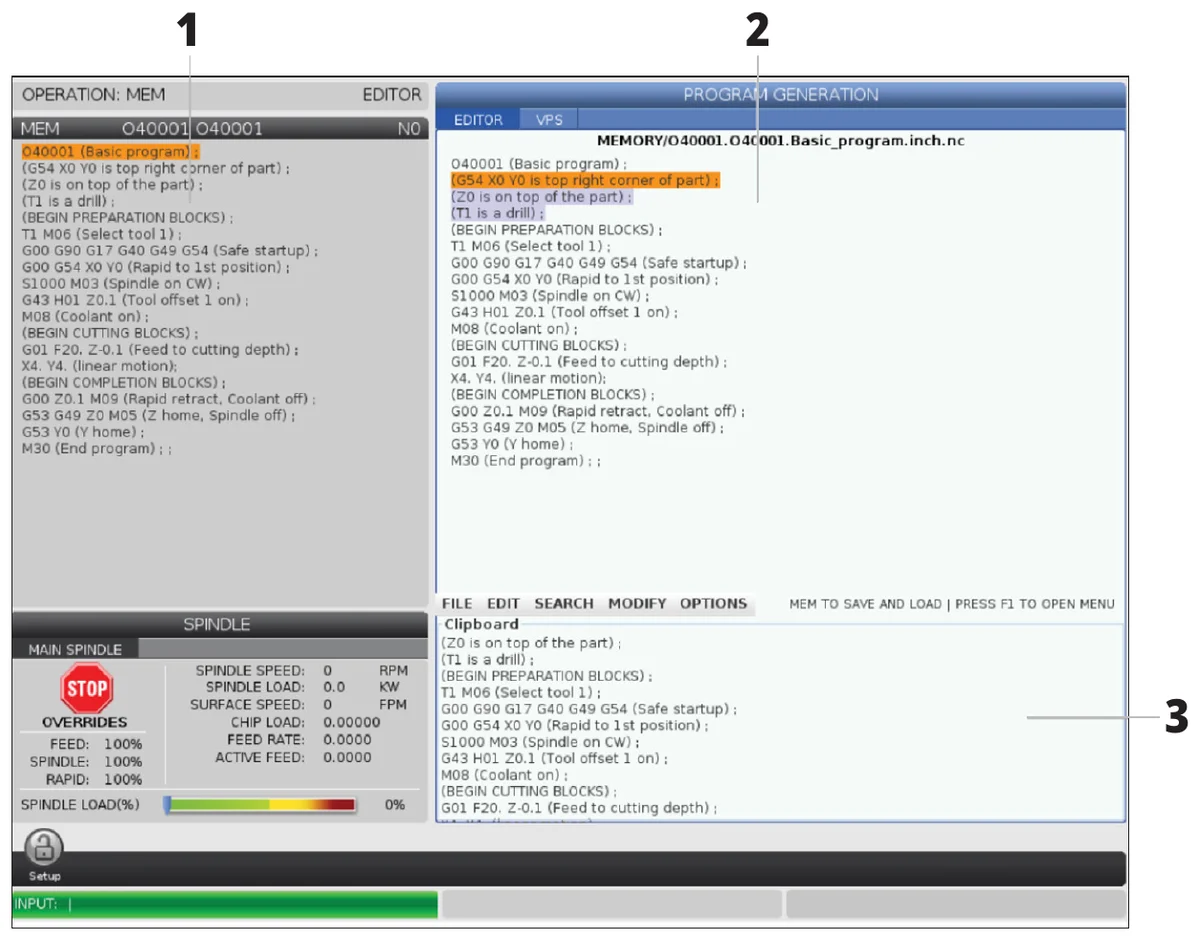
Select the program in [LIST PROGRAM] and press [EDIT]:
| To do this | Do this |
|---|---|
| Add code | Highlight the block the new code should follow → type → [INSERT] |
| Replace code | Highlight the code → type the new code → [ALTER] |
| Delete code | Highlight → [DELETE] |
| Undo | [UNDO], up to the last 40 changes |
| Save | [MEMORY] saves the program and loads it into the Active Program pane |
The step most people miss: in EDIT:EDIT the control does not save as you type. If you leave without pressing [MEMORY], the active program is not changed, and UNDO no longer works after you exit EDIT:EDIT.
Copying, moving and deleting several lines
- Put the cursor on the first or last line of the selection and press F2 to start.
- Extend the selection with the arrows or the jog handle and press F2 to finish.
- Move the cursor to the target and press ENTER to copy, [ALTER] to move, or [DELETE] to delete.
Block actions cannot be undone. The program name line cannot be selected; the control shows GUARDED CODE.
Can you edit another program while the machine is running?
Yes. Highlight a program in [LIST PROGRAM] and press [ALTER] to open it in the editor while the active program keeps running. You can also edit the running program, but per the manual the change only takes effect after you save it and select it again in the device manager.
F3 file commands
| Command | What it does |
|---|---|
| Make Directory | Creates a new directory |
| Rename | Changes the name, O number and comment |
| Delete | Deletes the highlighted file or all checked files |
| Duplicate Program | Copies the program in place under a new name |
| Select All / Clear Selections | Checks all files / clears all checks |
| Sort By O Number | Sorts the list by O number (Memory only) |
| Setting 252 add / remove | Adds or removes the directory as a subprogram search location |
If a program will not change: with the Memory Lock keyswitch locked, programs, settings and offsets cannot be altered. With Setting 8 (Prog Memory Lock) on, memory editing functions are locked out as well.
What to check in programs written on a PC
- The text file starts and ends with a % line.
- The program name uses O plus 5 digits (for example O02001).
- If a subprogram called with M98 is not in memory, its file name must be Onnnnn.nc, with the O, the leading zeros and the .nc extension. The control looks in the active directory first, then in the locations set in Settings 251 and 252.
Common mistakes
- Leaving without saving: editing in EDIT:EDIT and not pressing [MEMORY]; the machine runs the old program.
- Forgotten check marks: F2 or DELETE acts on old checked files, not on the highlighted one.
- Treating a check mark as selection: only [SELECT PROGRAM] makes a program active.
- Skipping the overwrite prompt: ENTER replaces the existing program with the same O number.
- Using O09xxx: risk of overwriting macro programs.
FAQ
Can I run a program from USB without copying it to memory?
The manual’s active-program step describes programs in memory. The safe route is to copy the program to Memory and select it with [SELECT PROGRAM].
Why did my edited program not change?
Either it was not saved with [MEMORY], or you edited the running program. Save it and select it again.
Is it different on a Haas lathe?
The device manager and edit keys are the same on the lathe: Haas lathe program loading and editing.
Next step
Once the program is loaded and the work offset is set, prove it out in graphics and single block: Haas mill program prove-out. For the work offset: Haas mill G54 and tool length.
Disclaimer
The steps on this page follow the Haas operator’s manuals. Screen and key names can differ between control software versions; your machine’s manual always takes priority. Mentor CNC cannot be held responsible for damage or injury arising from the use of this information.
